How to merge PDF
Master how to merge PDF files into one unified document. Learn how to arrange cover pages, body chapters, and appendices in the exact order you need.
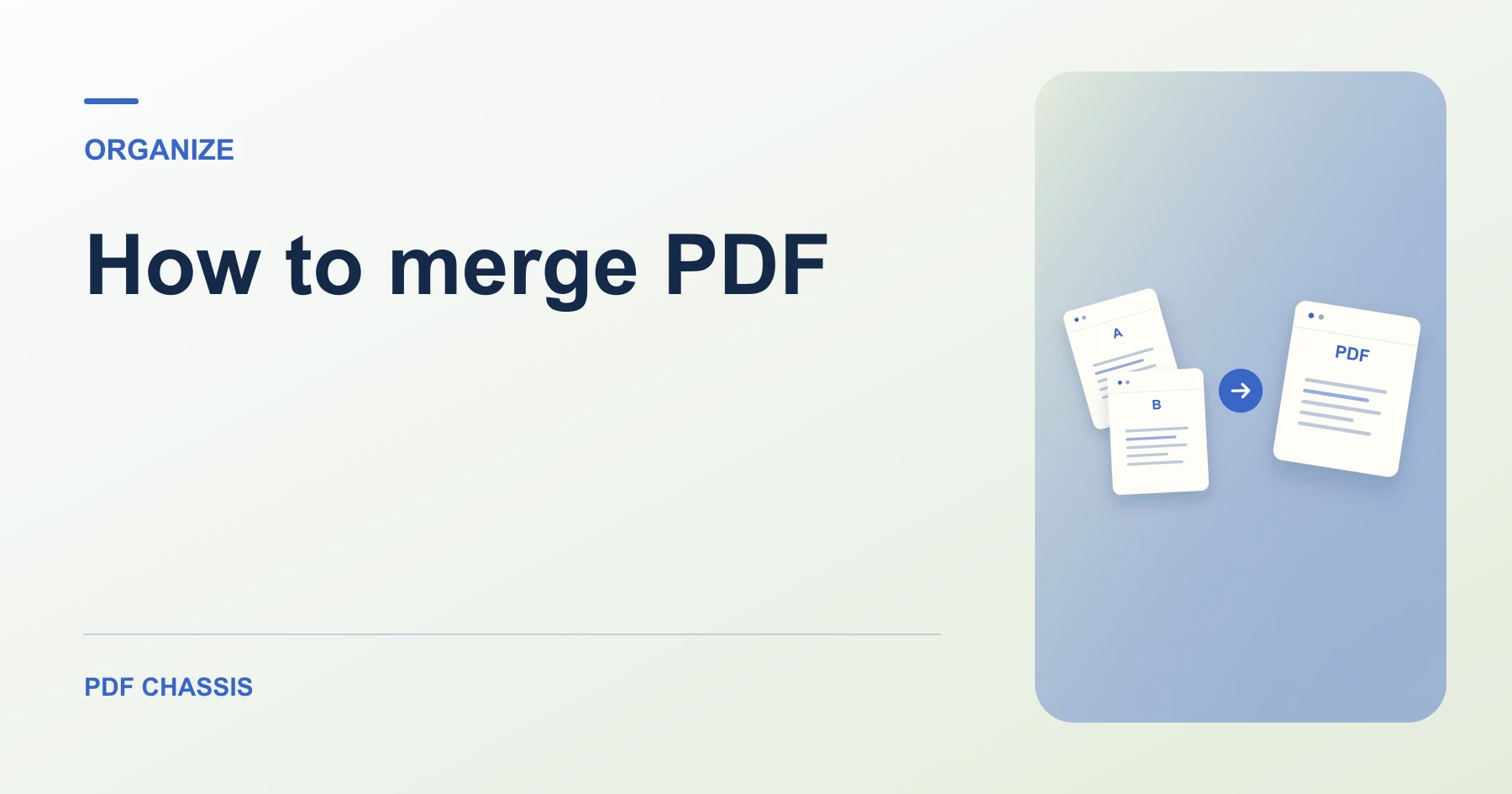
Learn how to merge PDF files into one clean document, arrange them in order, and check the combined PDF before sharing. Open Merge PDF when you’re ready.
If you’re working out how to merge PDF, use the example below to check what the tool returns. Keep the source available so you can check the exported result.
How to merge PDF documents in minutes
Understanding how to merge PDF files into a single cohesive dossier is an essential skill for professionals, students, and administrative teams. Whether combining monthly financial invoices, legal exhibits, or academic research papers, assembling disparate files into a single PDF simplifies sharing and guarantees that your recipient reads your materials in the exact intended sequence.
In PDF Chassis, you can combine multiple files directly in your web browser. With client-side WebAssembly execution, files are merged locally in memory without uploading your data to third-party servers.
Open the source files before you merge them. Check that you have the latest revision and that the cover, report, and appendix already have their own pages in the correct order.
After the merge, verify the transitions between files. If the report begins too early, compare the page counts with the originals before moving any pages in the new copy.
- Open Merge PDF in your browser and select two or more PDF files from your device.
- Arrange the documents into sequence using the up and down arrow controls.
- Click Merge PDF to assemble the files into a single unified document.
- Download your combined PDF and verify section transitions and page counts.
Build a packet in the right order
For a submission with a one-page cover, a six-page form, and a two-page appendix, place the files in that order. The merged copy should have nine pages. The form starts on page 2 and the appendix starts on page 8.
If a page is misplaced inside a source file, adjust it with Organize PDF before merging, or use it on the combined copy.

Managing page transitions and document order
Reordering Controls:Tactile Up and Down arrows per document
Page Integrity:Internal page sequences preserved 100%
File Size Cap:Up to 100 MB combined input
Privacy Standard:Zero cloud uploads, 100% in-browser
When you merge multiple PDFs, the order of the source files determines where each section begins. For example, placing a one-page title cover above a three-page project report creates a four-page document where the main report begins cleanly on page 2.
Each source document retains its internal page hierarchy. If you later need to reorder individual pages within a specific section, you can open the combined output in our Organize PDF tool to fine-tune page positions.
Verifying the merged document before sharing
Before distributing your merged file, perform these quality checks:
1. Verify that total page count equals the exact sum of all input documents.
2. Ensure bookmarks, table of contents links, and external hyperlinks remain clickable.
3. Check interactive form fields and typed signatures in your PDF reader to ensure they render accurately.
For a related workflow, see combine signed PDFs for reference.
Frequently asked questions
What should I check in the saved copy?
Open the combined file and check that the report starts on page 2. Review any links or forms you need.
What if the result looks wrong?
If a section starts on the wrong page, change the source order and merge again.
What will this workflow produce?
Cover + report → Four-page PDF. Open the combined file and check that the report starts on page 2. Review any links or forms you need.
More articles for this tool
Ready to try it?
Open Merge PDFMerge PDF