How to combine signed PDFs
Here’s how to combine signed PDFs into a reference copy. Keep the individual signed files so you can verify their signatures separately.
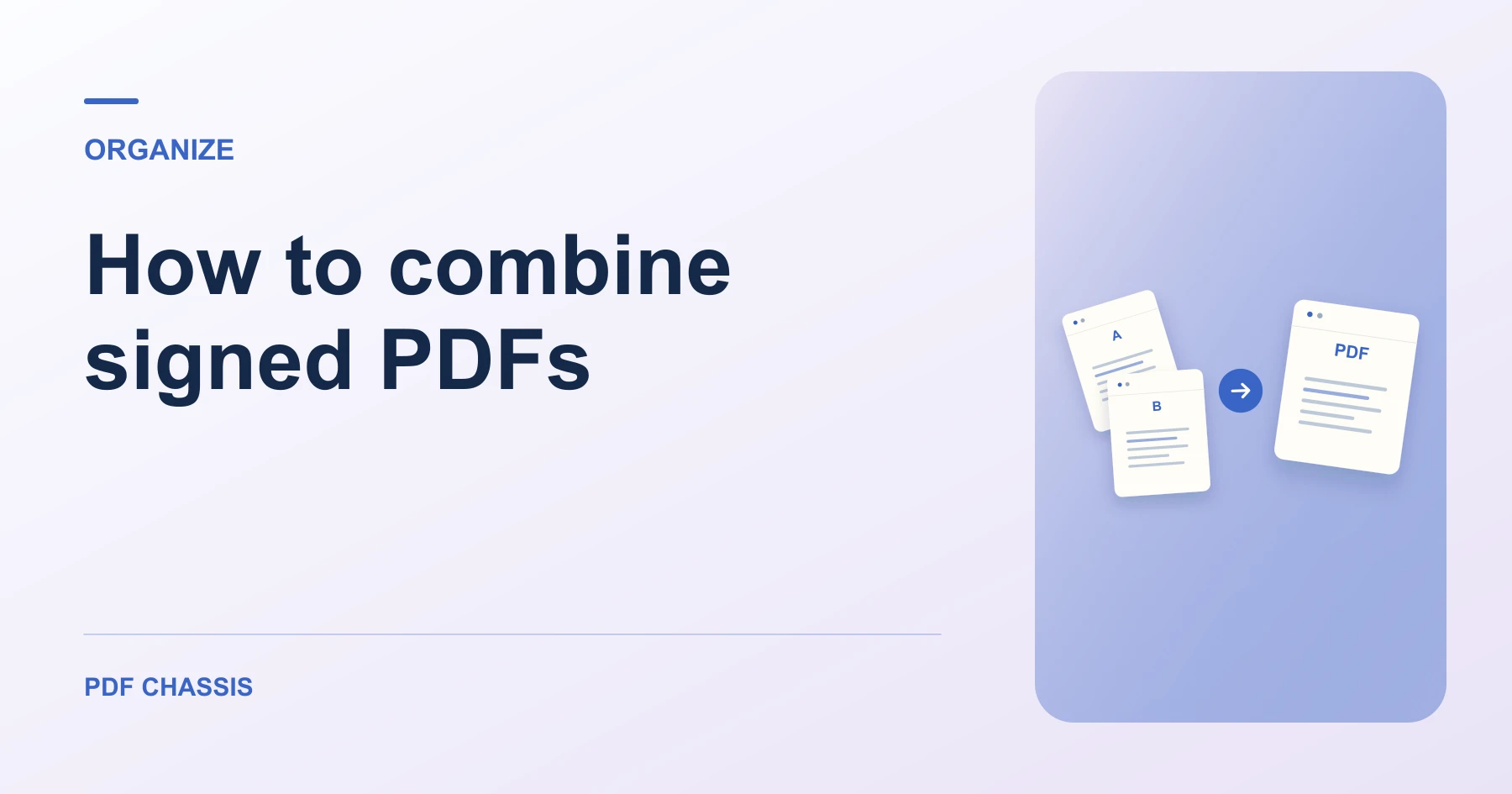
Learn how to combine signed PDFs for reference and keep the original signed files available for verification. Open Merge PDF when you’re ready.
If you’re working out how to combine signed PDFs, use the example below to check what the tool returns. Keep the source available so you can check the exported result.
How to combine signed PDFs for reference
Open Merge PDF once you have a copy of each file.
- Keep both signed originals in their original format.
- Decide the order of the agreement and appendix.
- Use Merge PDF to make a separate reference copy.
Check signatures and page order
A signature field may stop verifying when pages are copied to another PDF. A visible signature on a page can survive as an appearance without preserving its verification.
If you are deciding how to combine signed PDFs for a recipient, ask whether they need the original individual files. Send those originals when signature verification matters.
For a related workflow, see How to merge PDF.

Frequently asked questions
What should I check in the saved copy?
Open the combined file and check that the report starts on page 2. Review any links or forms you need.
What if the result looks wrong?
If a section starts on the wrong page, change the source order and merge again.
What will this workflow produce?
Signed agreement and appendix → Combined reference copy. Open the combined file and check that the report starts on page 2. Review any links or forms you need.
Ready to try it?
Open Merge PDFMerge PDF