How to merge PDFs for an application packet
A single upload can contain a cover letter, resume, and requested supporting material. Here’s how to merge PDFs for an application packet and check the result.
Learn how to merge PDFs for an application packet. Open Merge PDF when you’re ready.
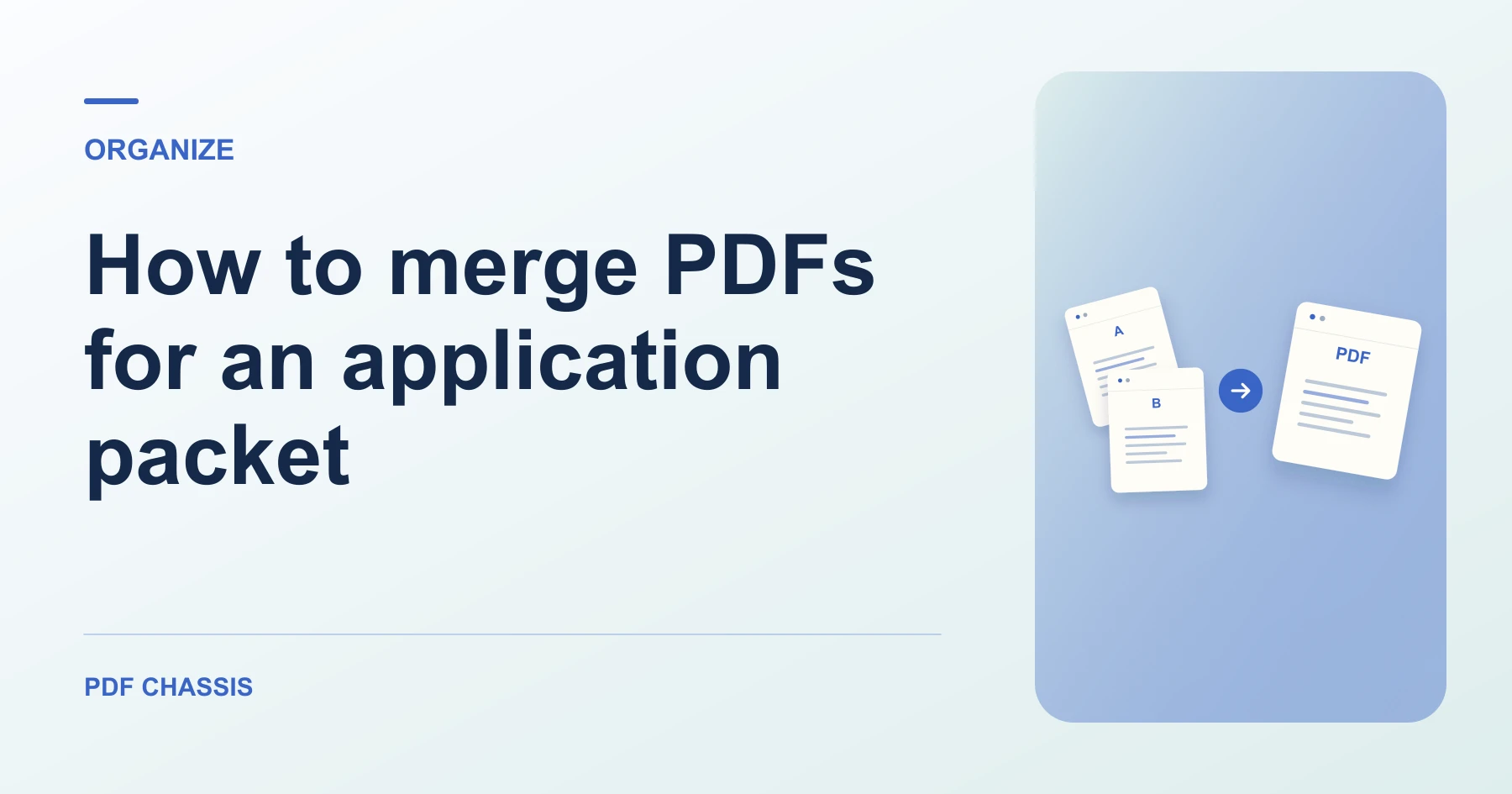
When you merge PDFs for an application packet, use the example below to check what the tool returns. Keep the source available so you can check the exported result.
Steps to merge PDFs for an application packet
- Read the submission instructions, then add the PDFs in the required sequence.
- Use only requested supporting pages, and put the document the reviewer expects first at the top of the list.
What to check
When you merge PDFs for an application packet, compare the combined file with the portal’s page and size limits. Compress the final packet separately if necessary.
For a related workflow, see How to merge PDF.

Frequently asked questions
What should I check before I share the result?
Compare the combined file with the portal’s page and size limits. Compress the final packet separately if necessary.
What if the result looks wrong?
If a section starts on the wrong page, change the source order and merge again.
What will this workflow produce?
Three application PDFs → Application packet. Open the combined file and check that the report starts on page 2. Review any links or forms you need.
Ready to try it?
Open Merge PDFMerge PDF