How to split PDF into multiple files
To split PDF into multiple files, decide whether your document should break at chapter boundaries or at a regular interval. Check the planned ranges before exporting.
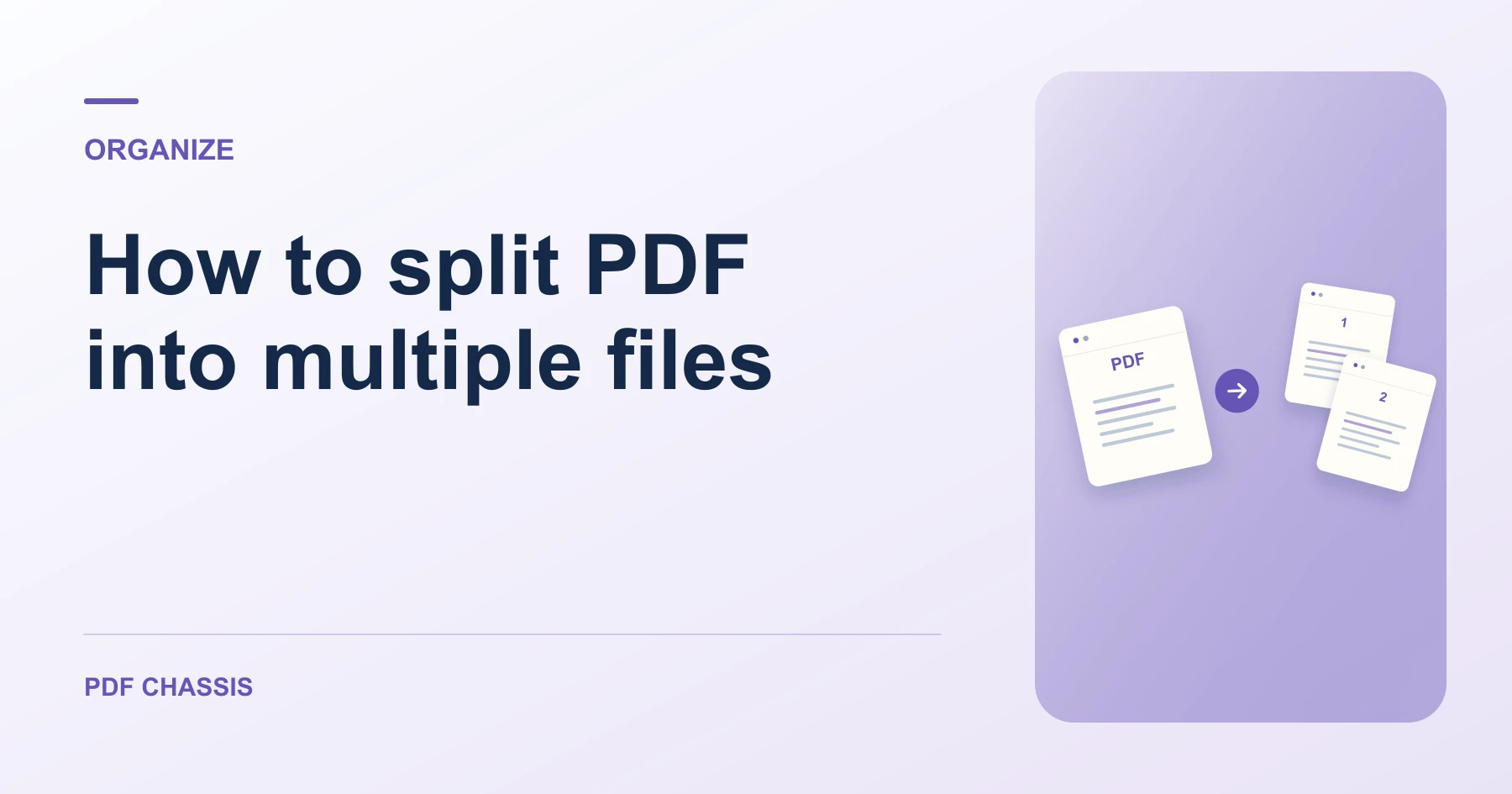
Learn how to split PDF into multiple files using chapter breaks, selected ranges, or a fixed page interval. Open Split PDF when you’re ready.
When you split PDF into multiple files, use the example below to check what the tool returns. Keep the source available so you can check the exported result.
Split PDF into multiple files at chapter breaks
Open Split PDF when you’re ready to try this workflow.
For a 12-page report with sections ending on pages 3 and 7, place cuts after 3 and 7. Check for three parts: 1–3, 4–7, and 8–12.
- Write down the last physical page of each part.
- Set visual cuts or enter separate custom ranges. Verify that every page you need appears in the intended part.
- Download the ZIP, extract it, and open the parts in sequence.
Make groups of the same size
To split PDF into multiple files with five pages per part, choose Fixed Interval and enter 5. A 12-page PDF produces two five-page parts and a final two-page part.

Export selected ranges
Use Custom Ranges when you want only certain sections. Enter each range as a separate row. Keep the merge option unchecked to save each range in its own file.
Download and check the ZIP
Unzip the download before attaching the PDFs. Check the file names and confirm each part begins with the right page.
For a related workflow, see How to Split PDF Files for Free.
Frequently asked questions
What should I check in the saved copy?
Open each part and check its first and last page. The expected lengths are 3, 4, and 5 pages.
What if the result looks wrong?
If a section starts too early or too late, use the viewer’s physical page positions and move the cut one page.
What will this workflow produce?
12-page report → Parts 1–3, 4–7, 8–12. Open each part and check its first and last page. The expected lengths are 3, 4, and 5 pages.
Ready to try it?
Open Split PDFSplit PDF