How to Split PDF Files for Free
Here’s how to split PDF files for free when you need separate sections or only a handful of pages. Decide which pages belong together before choosing a mode.
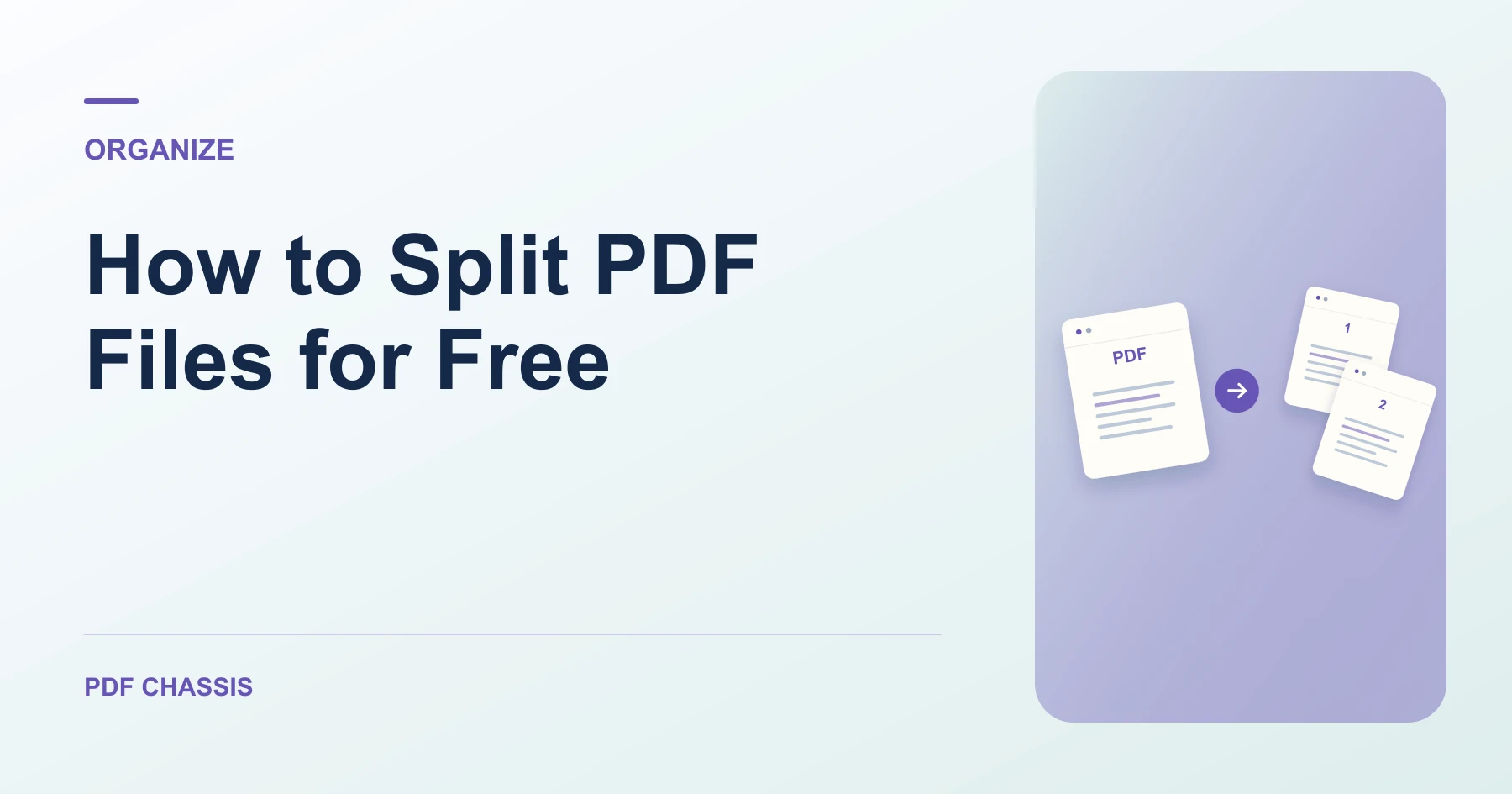
Learn how to split PDF files for free using visual cuts, custom ranges, or extraction. Open Split PDF when you’re ready.
If you’re working out how to split PDF files for free, use the example below to check what the tool returns. Keep the source available so you can check the exported result.
How to split PDF files for free by task
Open Split PDF when you’re ready to try this workflow.
Use visual cuts to divide the entire document. Use custom ranges when you need only specific sections. For a few unrelated pages, switch to Extract and select them directly.
Write the source positions beside each chapter name before setting cuts. Use the viewer’s page counter when the printed numbers restart after the cover or front matter.
Use custom ranges when you want to omit intervening pages. Use the fixed interval setting when every part should have the same number of pages, apart from the final part if the total doesn’t divide evenly.
- Open the PDF and locate the last page of each section in the preview.
- Set cuts after those pages, then confirm the ranges shown in the results list.
- Download one part directly or the ZIP for all parts. Verify the first and last page in each file.
Split a 12-page report into three chapters
Suppose the first chapter ends on page 3 and the second ends on page 7. Add a cut after each. The output list should show 1–3, 4–7, and 8–12. Open the first page of each part to confirm that it begins with the intended chapter.
To keep just the executive summary and appendix, use Extract PDF pages and enter the positions you want to keep.

Split a document in three steps
Here’s how to split PDF files for free using visual cuts. Open the PDF in PDF Chassis, place cuts where new documents should begin, then review the output ranges and press Split PDF. Download the result as a PDF or ZIP.
Check your split
For a ten-page report, cuts after pages 3 and 7 should produce 1–3, 4–7, and 8–10. Open the saved PDFs and check the first and last page of each before sending.
Can I split a PDF without an account?
Yes. PDF Chassis processes the selected file in the browser and does not require an account or a daily quota.
For a related workflow, see split the PDF into individual pages.
Frequently asked questions
What should I check in the saved copy?
Open each part and check its first and last page. The expected lengths are 3, 4, and 5 pages.
What if the result looks wrong?
If a section starts too early or too late, use the viewer’s physical page positions and move the cut one page.
What will this workflow produce?
10-page report → Parts 1–3, 4–7, 8–10. Open each part and check its first and last page. The expected lengths are 3, 4, and 5 pages.
Ready to try it?
Open Split PDFSplit PDF