How to split PDF into individual pages
To split PDF into individual pages, choose a one-page interval. If you only need a few pages, select those pages in Extract and save them separately.
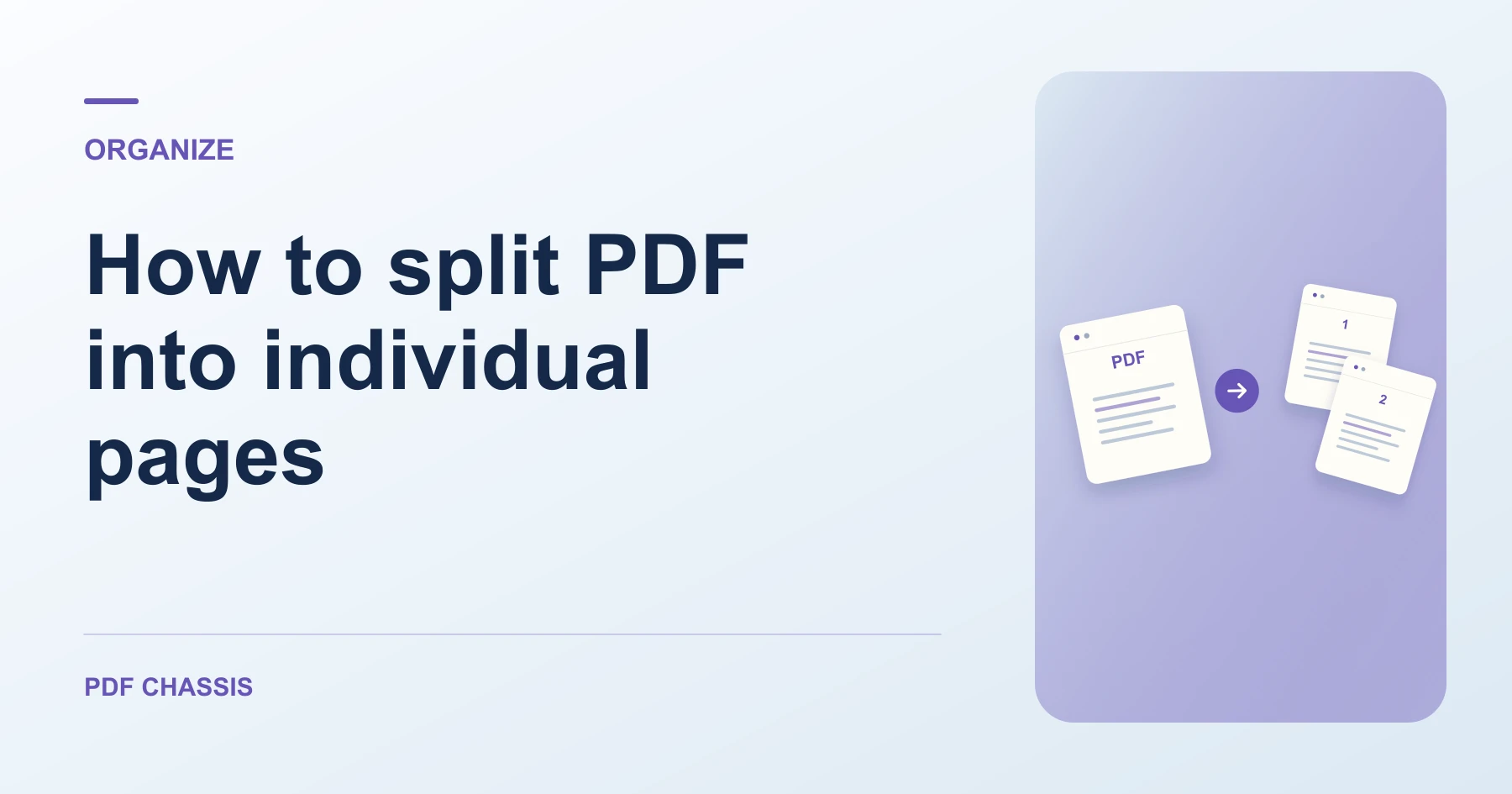
Learn how to split PDF into individual pages, export only selected pages, and open the resulting ZIP on desktop or mobile. Open Split PDF when you’re ready.
When you split PDF into individual pages, use the example below to check what the tool returns. Keep the source available so you can check the exported result.
Split PDF into individual pages in one pass
Open Split PDF when you’re ready to try this workflow.
Open the PDF and choose the one-page interval. A seven-page document should produce seven one-page PDFs.
- Open the source in Split PDF and choose Fixed Interval.
- Set the interval to one page. The output count should equal the source page count.
- Download the ZIP or an individual PDF, then check the page you need.
Keep only a few pages
To split PDF into individual pages from a selection, switch to Extract. Select the pages you need and choose separate files for one PDF per selection, or combine them into one document.

Open the files on desktop or phone
Open the downloaded ZIP using your device’s archive or Files app. Extract the PDFs to a folder before sharing individual pages. If you exported one page, the download is already a PDF.
Does splitting keep page quality?
The splitter copies page content instead of taking screenshots. Check interactive forms, links, bookmarks and signatures in the result before relying on them.
For a related workflow, see How to Split PDF Files for Free.
Frequently asked questions
What should I check in the saved copy?
Open each part and check its first and last page. The expected lengths are 3, 4, and 5 pages.
What if the result looks wrong?
If a section starts too early or too late, use the viewer’s physical page positions and move the cut one page.
What will this workflow produce?
Seven-page PDF → Seven one-page PDFs. Open each part and check its first and last page. The expected lengths are 3, 4, and 5 pages.
Ready to try it?
Open Split PDFSplit PDF