How to remove a PDF page
Here’s how to remove a PDF page while keeping the remaining pages in their original order. Start by checking the page’s position in your PDF viewer.
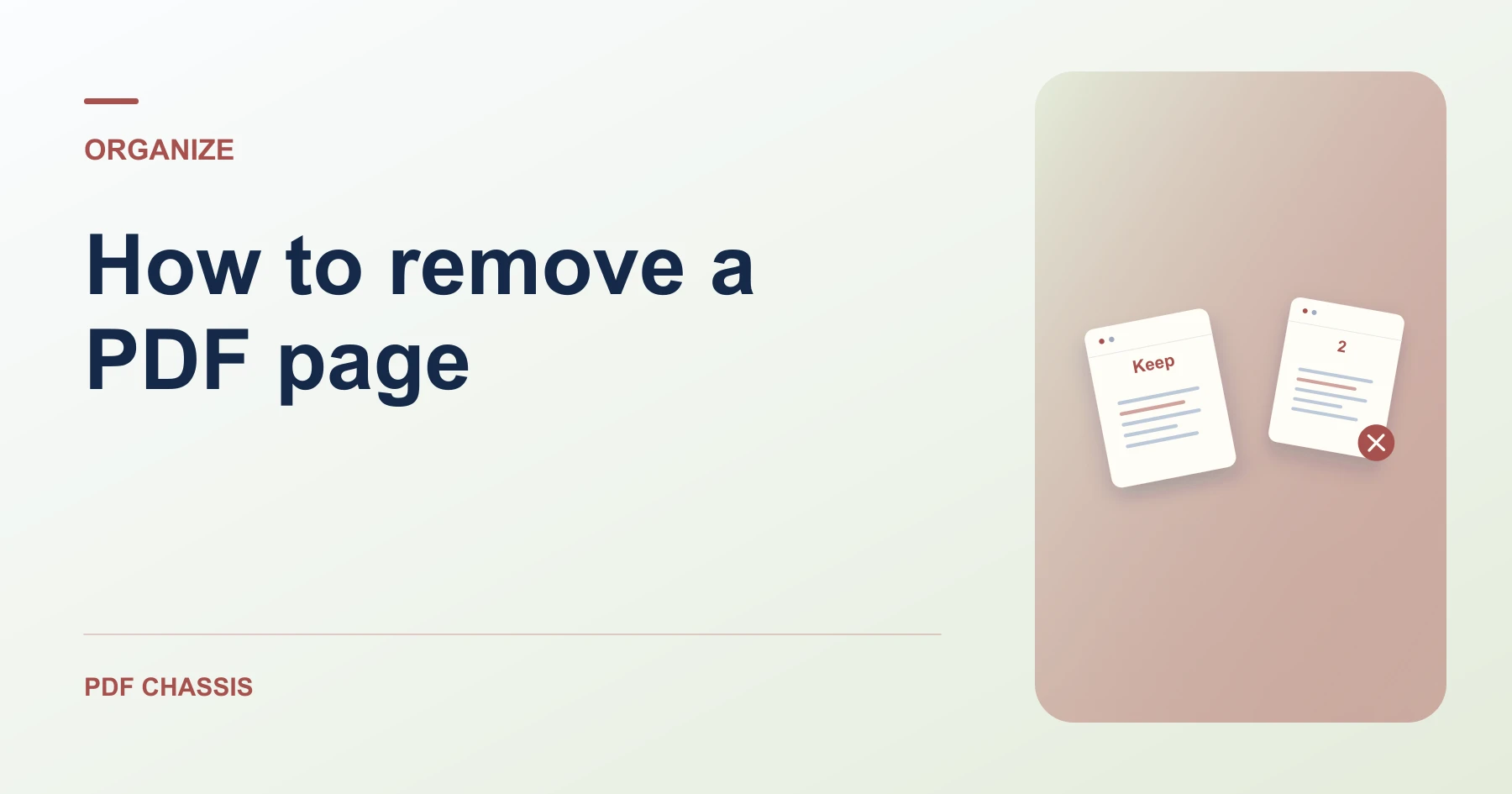
Learn how to remove a PDF page, delete several numbered ranges, and check the pages left in your new copy. Open Remove PDF pages when you’re ready.
If you’re working out how to remove a PDF page, use the example below to check what the tool returns. Keep the source available so you can check the exported result.
How to remove a PDF page by number
Open Remove PDF pages when you’re ready to try this workflow.
Choose the PDF in Remove PDF pages. Enter the position to delete and save a copy. To delete several pages at once, enter a list such as 2, 5-7.
Open the original and write down the viewer positions of all pages to remove before making changes. Use the position in the file rather than a page number printed on the document.
Check both sides of each removed range in the saved copy. If you removed pages 5–7, verify that the original page 4 now leads directly to original page 8.
- Check the source in a viewer and write down the positions to remove.
- In Page numbers, enter 2, 5-7 for an eight-page example.
- Download and open the copy. It should contain original pages 1, 3, 4, and 8.
Check the pages that remain
An eight-page draft with a duplicate on page 2 and an obsolete section on pages 5–7 should leave four pages after deletion. Open the copy and check that the original fourth page is now third and the original last page is still last.
If you only need one small section, extract those pages into a separate PDF and keep the draft for reference.

Check which pages remain
When learning how to remove a PDF page, verify the output against the original. Removing 2 and 5–7 from an eight-page file leaves original pages 1, 3, 4, and 8. Keep at least one page.
Review the file before sharing it
Open the output and check internal links, fields, bookmarks and signatures. Removing whole pages cannot hide sensitive material still visible on the pages you keep.
For a related workflow, see troubleshoot pages you can’t remove.
Frequently asked questions
What should I check in the saved copy?
Check that the copy has four pages and that original page 8 is still last.
What if the result looks wrong?
Keep at least one page. If you are trying to keep a few pages from a long file, extraction may be quicker.
What will this workflow produce?
Pages 1–8 → Pages 1, 3, 4, 8. Check that the copy has four pages and that original page 8 is still last.
More articles for this tool
Ready to try it?
Open Remove PDF pagesRemove PDF pages