How to remove blank pages from a PDF
Double-sided scanning can add empty reverse sides between pages that matter. Here’s how to remove blank pages from a PDF and check the result.
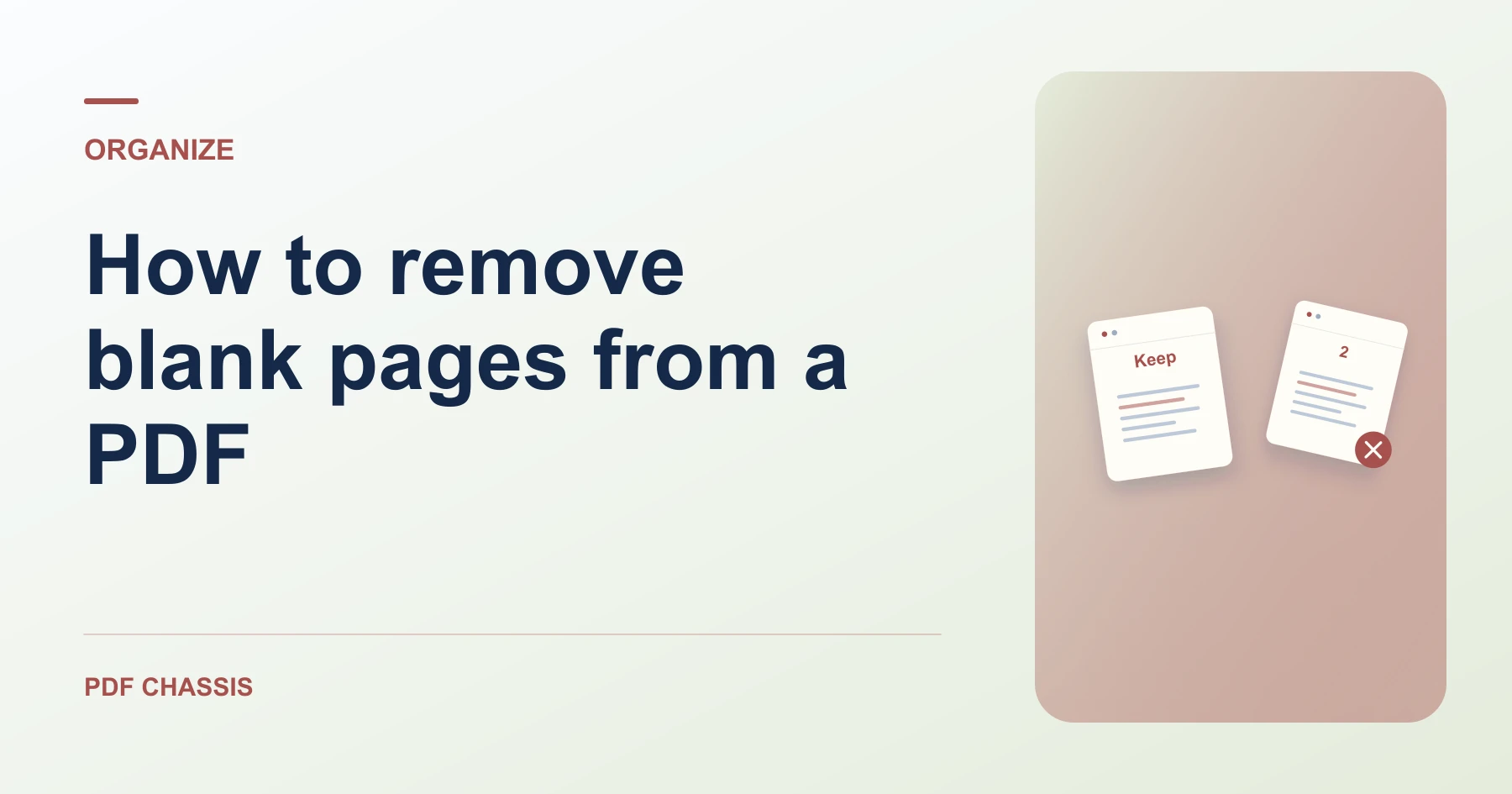
Learn how to remove blank pages from a PDF. Open Remove PDF pages when you’re ready.
When you remove blank pages from a PDF, use the example below to check what the tool returns. Keep the source available so you can check the exported result.
Steps to remove blank pages from a PDF
- Review the thumbnails in a PDF viewer and write down the blank page positions.
- Enter those positions together in Remove PDF pages.
What to check
When you remove blank pages from a PDF, zoom in before treating a page as blank. Faint handwriting, page numbers, and signature marks can be hard to see in thumbnails.
For a related workflow, see How to remove a PDF page.

Frequently asked questions
What should I check before I share the result?
Zoom in before treating a page as blank. Faint handwriting, page numbers, and signature marks can be hard to see in thumbnails.
What if the result looks wrong?
Keep at least one page. If you are trying to keep a few pages from a long file, extraction may be quicker.
What will this workflow produce?
Scan with blanks → Shorter scan. Check that the copy has four pages and that original page 8 is still last.
Ready to try it?
Open Remove PDF pagesRemove PDF pages