How to repeat a page in a PDF
Insert another copy of a reference or worksheet at a chosen point in the same document. Here’s how to repeat a page in a PDF and check the result.
Learn how to repeat a page in a PDF. Open Organize PDF when you’re ready.
When you repeat a page in a PDF, use the example below to check what the tool returns. Keep the source available so you can check the exported result.
Steps to repeat a page in a PDF
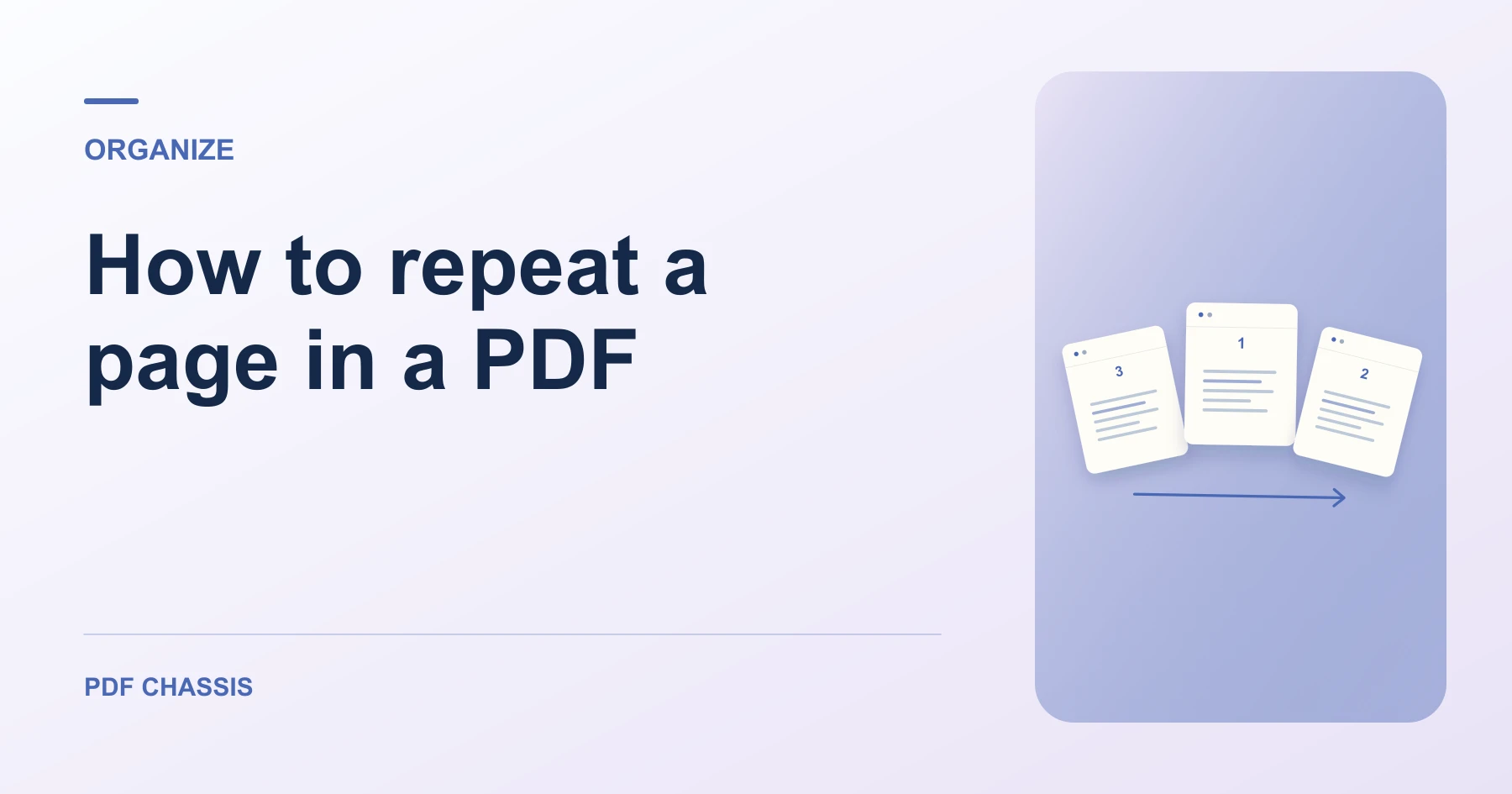
- Enter 1, 2, 2, 3 in Organize PDF.
- The repeated number adds another copy of that page to the output.
What to check
When you repeat a page in a PDF, check both copies of the repeated page and keep track of how the insertion shifted later positions.
For a related workflow, see How to organize PDF pages.

Frequently asked questions
What should I check before I share the result?
Check both copies of the repeated page and keep track of how the insertion shifted later positions.
What if the result looks wrong?
A repeated number produces a repeated page. To keep every page once, check the sequence before exporting.
What will this workflow produce?
Pages 1, 2, 3 → Pages 1, 2, 2, 3. Open the new copy and confirm the first page and the total page count.
Ready to try it?
Open Organize PDFOrganize PDF