How to organize PDF pages
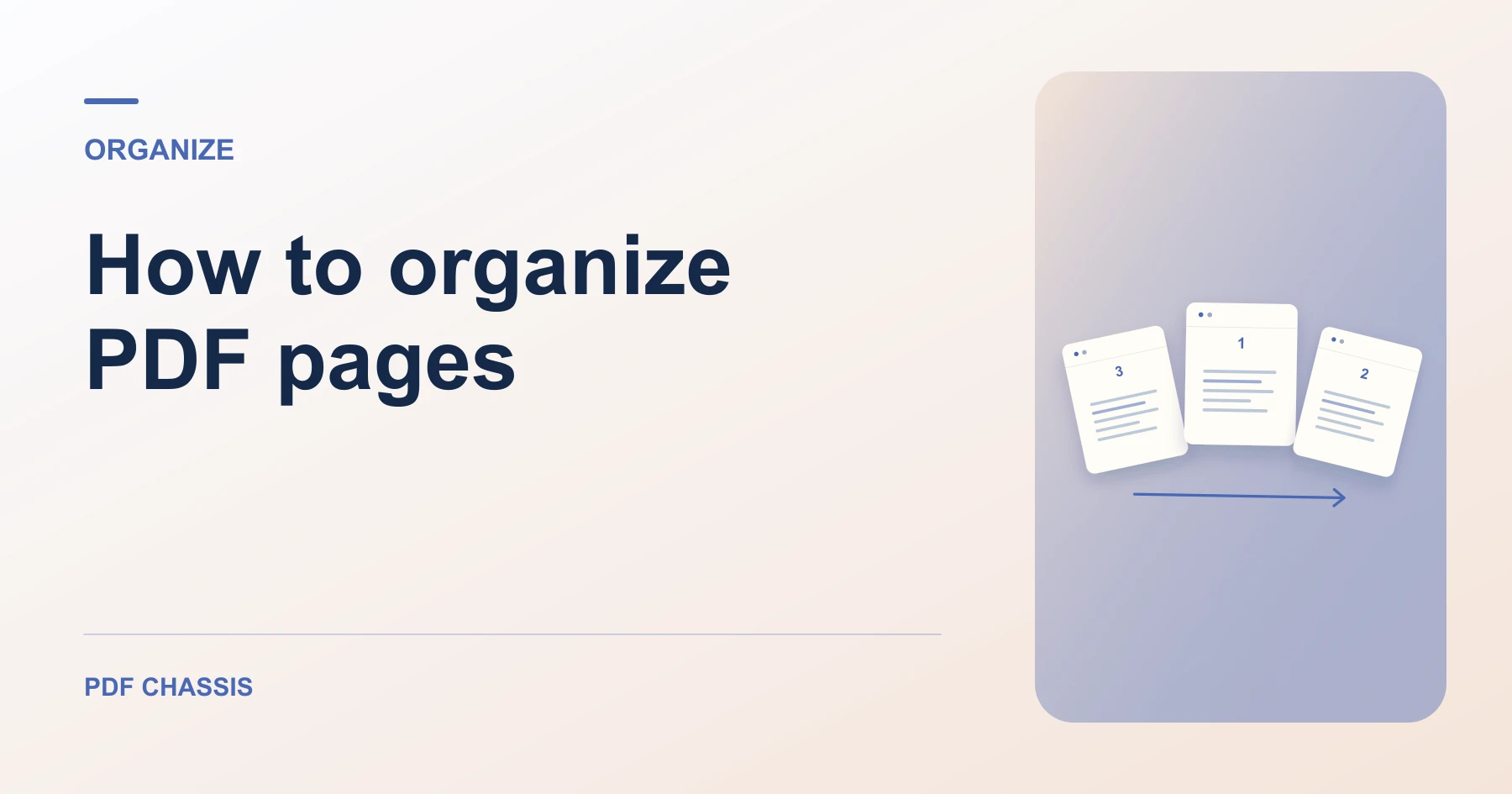
You can organize PDF pages by removing extras, putting them in a different order, or combining separate documents. Choose the method based on which pages belong in your final copy.
Learn how to organize PDF pages by merging, splitting, extracting, or reordering them. Open Organize PDF when you’re ready.
When you organize PDF pages, use the example below to check what the tool returns. Keep the source available so you can check the exported result.
Choose the right tool to organize PDF pages
Open Organize PDF when you’re ready to try this workflow.
Use Merge PDF to combine separate files. Use Split PDF to turn a document into separate files, or Extract PDF pages to collect selected pages in one new PDF.
Enter page numbers in the order you want
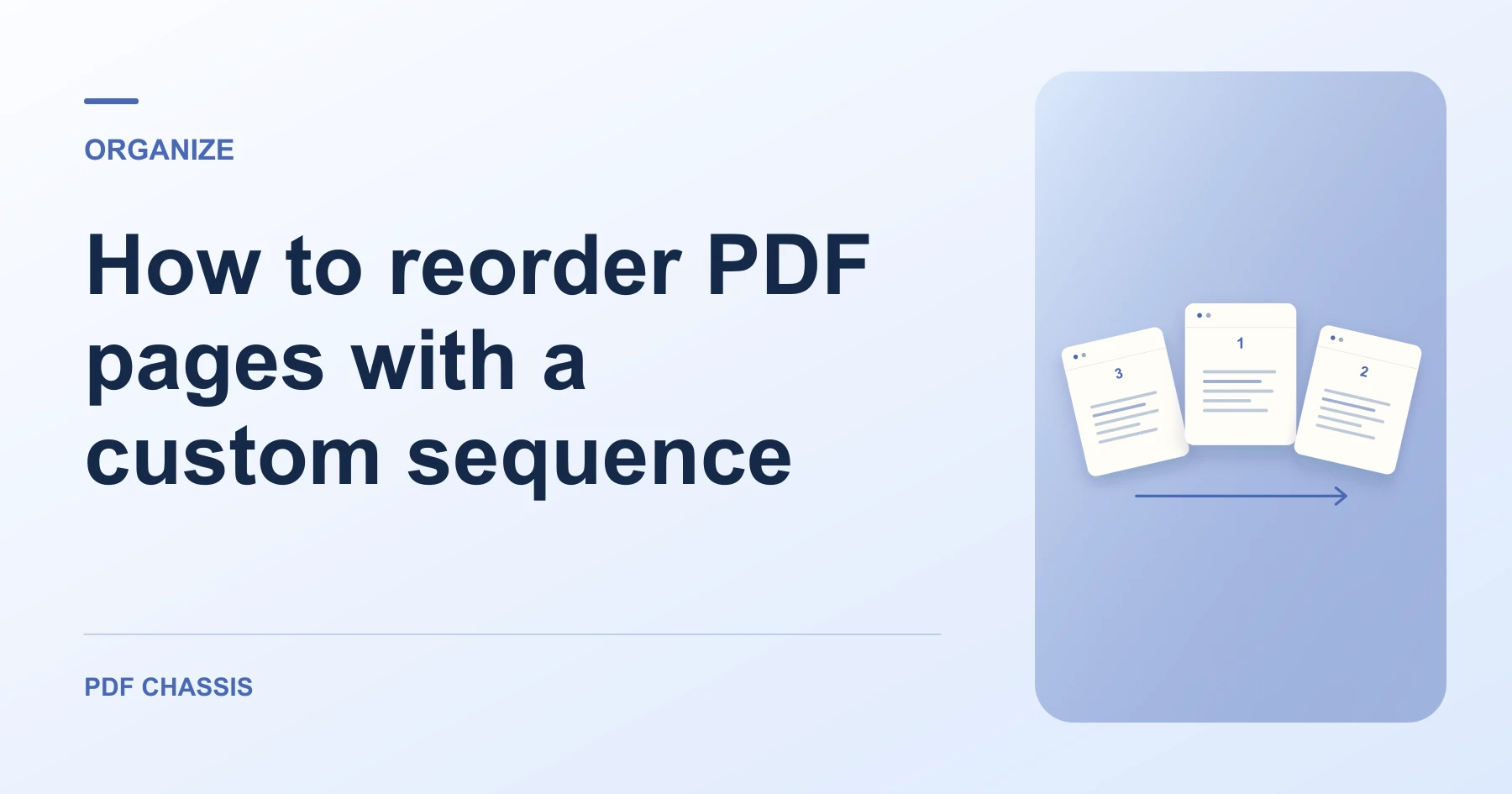
To organize PDF pages with page 3 first, enter 3, 1–2 in the tool. To keep the original order and discard a few pages, use Remove PDF pages instead.

Check the new copy
Open the result and verify the first and last pages. Page changes can affect bookmarks, form fields, or existing digital signatures. Keep the original if those features matter.
For a related workflow, see How to reorder PDF pages with a custom sequence.
Frequently asked questions
What should I check in the saved copy?
Open the new copy and confirm the first page and the total page count.
What if the result looks wrong?
A repeated number produces a repeated page. To keep every page once, check the sequence before exporting.
What will this workflow produce?
Pages 1, 2, 3 → Pages 3, 1, 2. Open the new copy and confirm the first page and the total page count.
Ready to try it?
Open Organize PDFOrganize PDF