How to prepare searchable files for PDF comparison
Image-only scans cannot be compared as selectable text. Here’s how to prepare searchable files for PDF comparison and check the result.
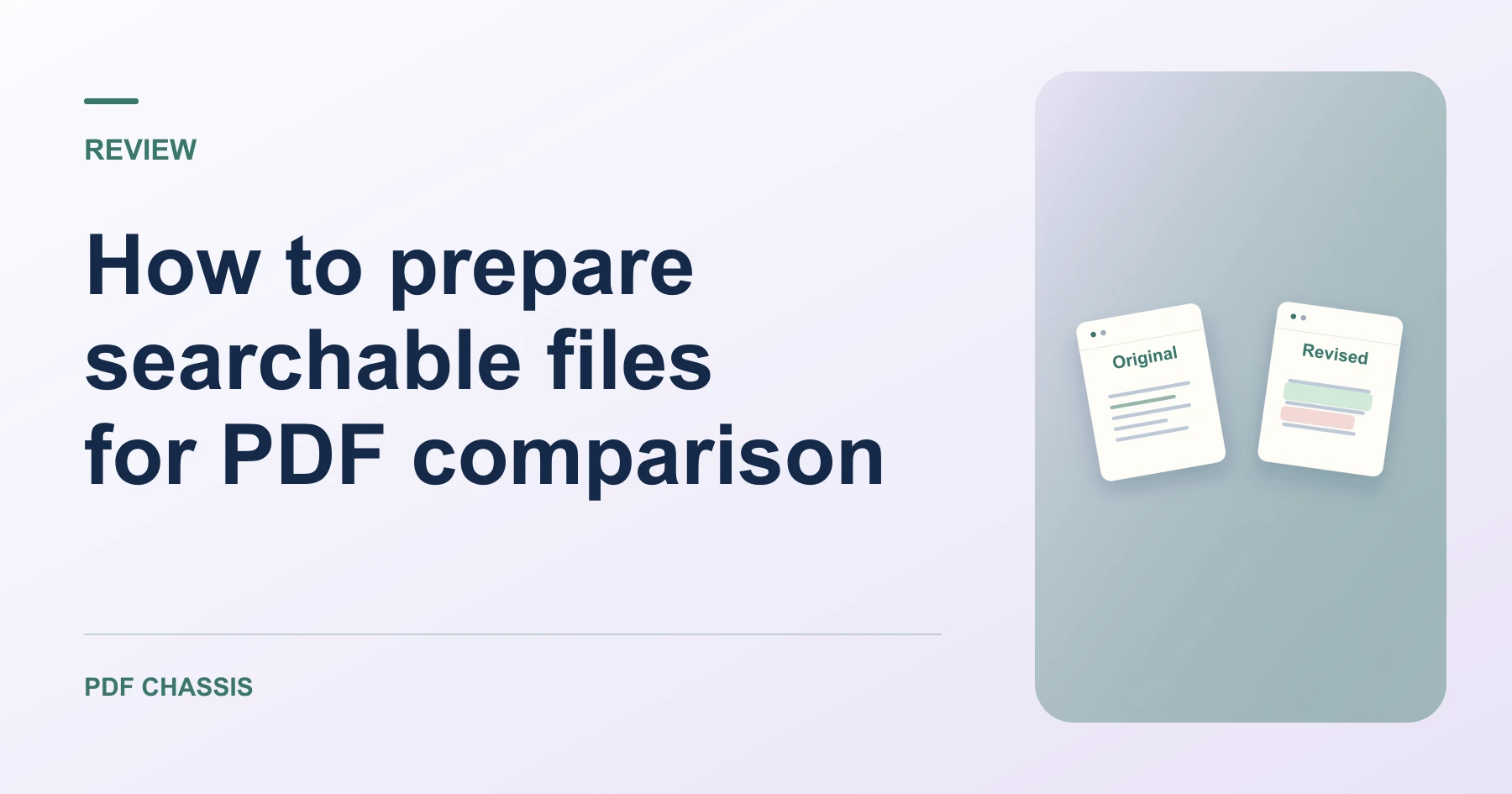
Learn how to prepare searchable files for PDF comparison. Open Compare PDF text when you’re ready.
When you prepare searchable files for PDF comparison, use the example below to check what the tool returns. Keep the source available so you can check the exported result.
Steps to prepare searchable files for PDF comparison
- Test text selection in both documents.
- Run text recognition separately on scans, verify the searchable copies, and upload those copies to Compare PDF text.
What to check
When you prepare searchable files for PDF comparison, compare names, figures, and dates against the original images because text recognition can introduce differences.
For a related workflow, see How to compare PDF versions.

Frequently asked questions
What should I check before I share the result?
Compare names, figures, and dates against the original images because text recognition can introduce differences.
What if the result looks wrong?
Scanned pages can lack selectable text. Use text recognition or review those pages visually.
What will this workflow produce?
Two scanned PDFs → Two searchable copies. Check each flagged page against both sources. Inspect image and formatting changes separately.
Ready to try it?
Open Compare PDF textCompare PDF text