How to read a PDF text comparison report
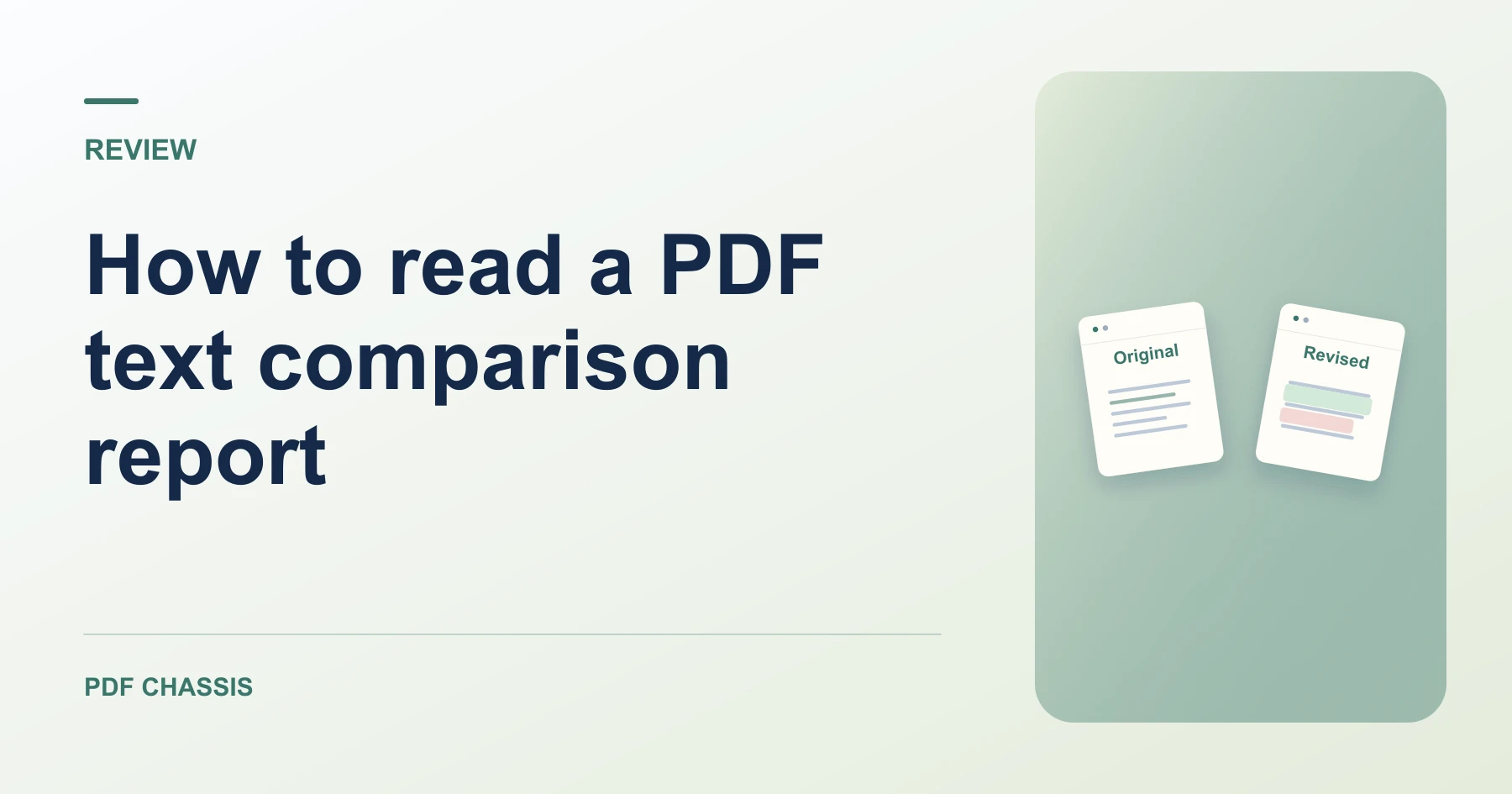
A page-by-page report shows selectable text from changed pages in both versions. Here’s how to read a PDF text comparison report and check the result.
Learn how to read a PDF text comparison report. Open Compare PDF text when you’re ready.
When you read a PDF text comparison report, use the example below to check what the tool returns. Keep the source available so you can check the exported result.
Steps to read a PDF text comparison report
- Add the original first and the revision second.
- Open the downloaded TXT report and compare the Original and Revised blocks for each listed page.
What to check
When you read a PDF text comparison report, verify changes in the source files. The report compares page text and does not mark changed words within a line.
For a related workflow, see How to compare PDF versions.

Frequently asked questions
What should I check before I share the result?
Verify changes in the source files. The report compares page text and does not mark changed words within a line.
What if the result looks wrong?
Scanned pages can lack selectable text. Use text recognition or review those pages visually.
What will this workflow produce?
Two versions of a PDF → Text comparison report. Check each flagged page against both sources. Inspect image and formatting changes separately.
Ready to try it?
Open Compare PDF textCompare PDF text