How to sign PDF on Windows
Here’s how to sign PDF on Windows with PDF Chassis. Place a typed signature on the final page of a PDF you are authorized to sign.
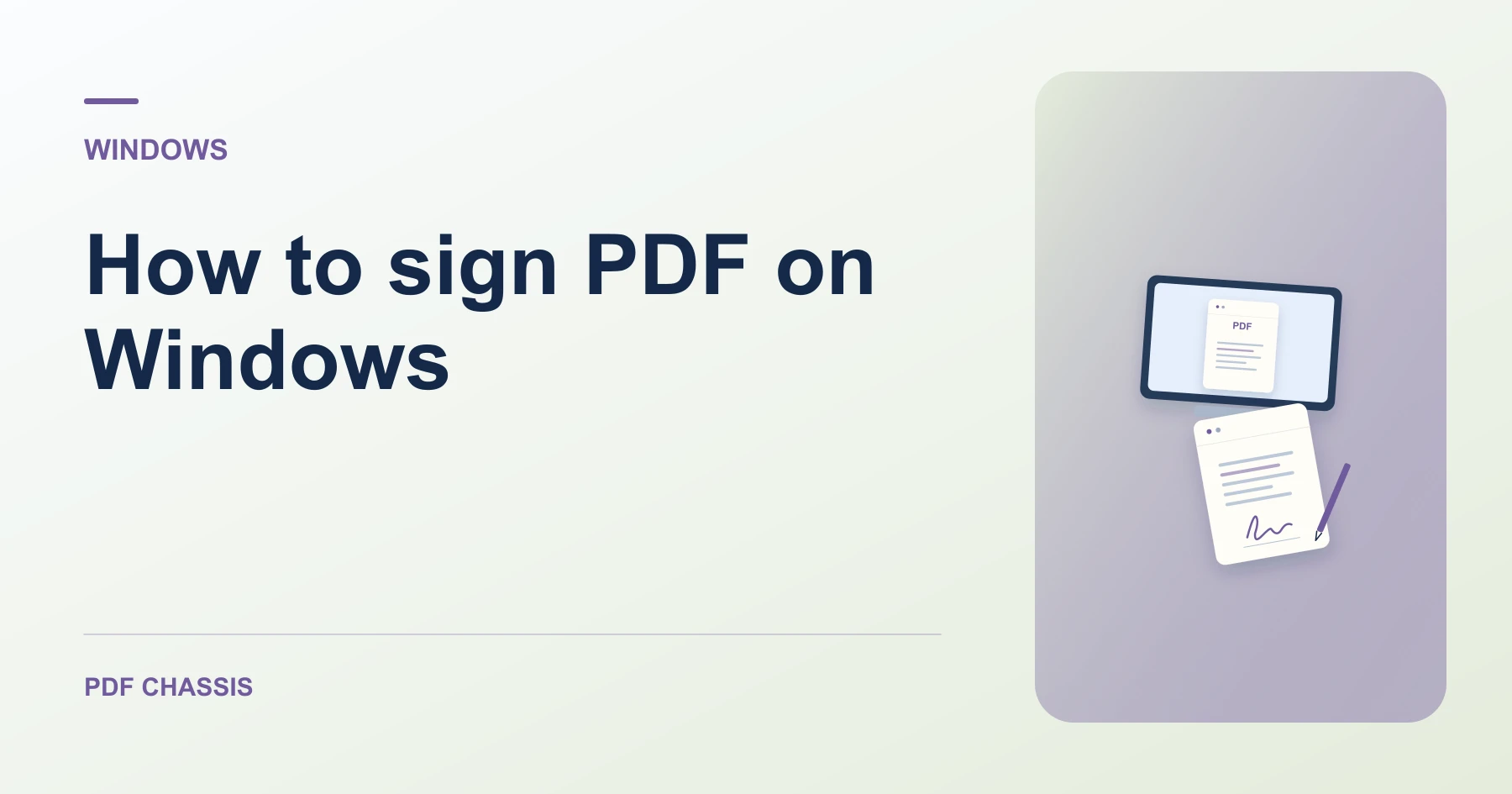
Learn how to sign PDF on Windows in Microsoft Edge. Open Sign PDF when you’re ready.
If you’re working out how to sign PDF on Windows, use the example below to check what the tool returns. On Windows, keep a copy of the source where you can find it again.
How to sign PDF on Windows with PDF Chassis
In your browser, open PDF Chassis and navigate to the sign PDF tool in Microsoft Edge. Find the source in File Explorer. If a OneDrive file is online-only, download it before using the browser’s file chooser.
- In Microsoft Edge on your Windows, open PDF Chassis and select sign PDF.
- Choose the PDF and identify the signing page.
- Type the signature, choose the page and placement, and apply it.
- Download the copy and check the signing area.
- Open the file from Edge’s downloads list or the download folder in File Explorer. Give the result a distinct name if you plan to share it.
Try an example on Windows
Sign the last page of a document and save a clearly named copy. Check it in Edge and confirm the recipient accepts a typed mark.
Check the spelling, page, and placement. Confirm the recipient accepts a typed signature.

How to sign PDF on Windows if the result looks wrong
A typed mark is a visible signature. Ask the recipient for their required process if they need a certificate or audit trail.
Open the signed copy in Edge under a different filename. Check the footer or other text near the signature for overlap.
For a related workflow, see How to edit or sign a PDF copy.
Frequently asked questions
What should I check in the saved copy?
Check the spelling, page, and placement. Confirm the recipient accepts a typed signature.
What if the result looks wrong?
A typed mark is a visible signature. Ask the recipient for their required process if they need a certificate or audit trail.
Where can I find the result on Windows?
Open the file from Edge’s downloads list or the download folder in File Explorer. Give the result a distinct name if you plan to share it.
Ready to try it?
Open Sign PDFSign PDF