How to rotate PDF on iPhone free
Learn how to rotate pdf on iphone free using Safari on iOS to fix upside-down camera photos and scanned documents directly on your mobile device.
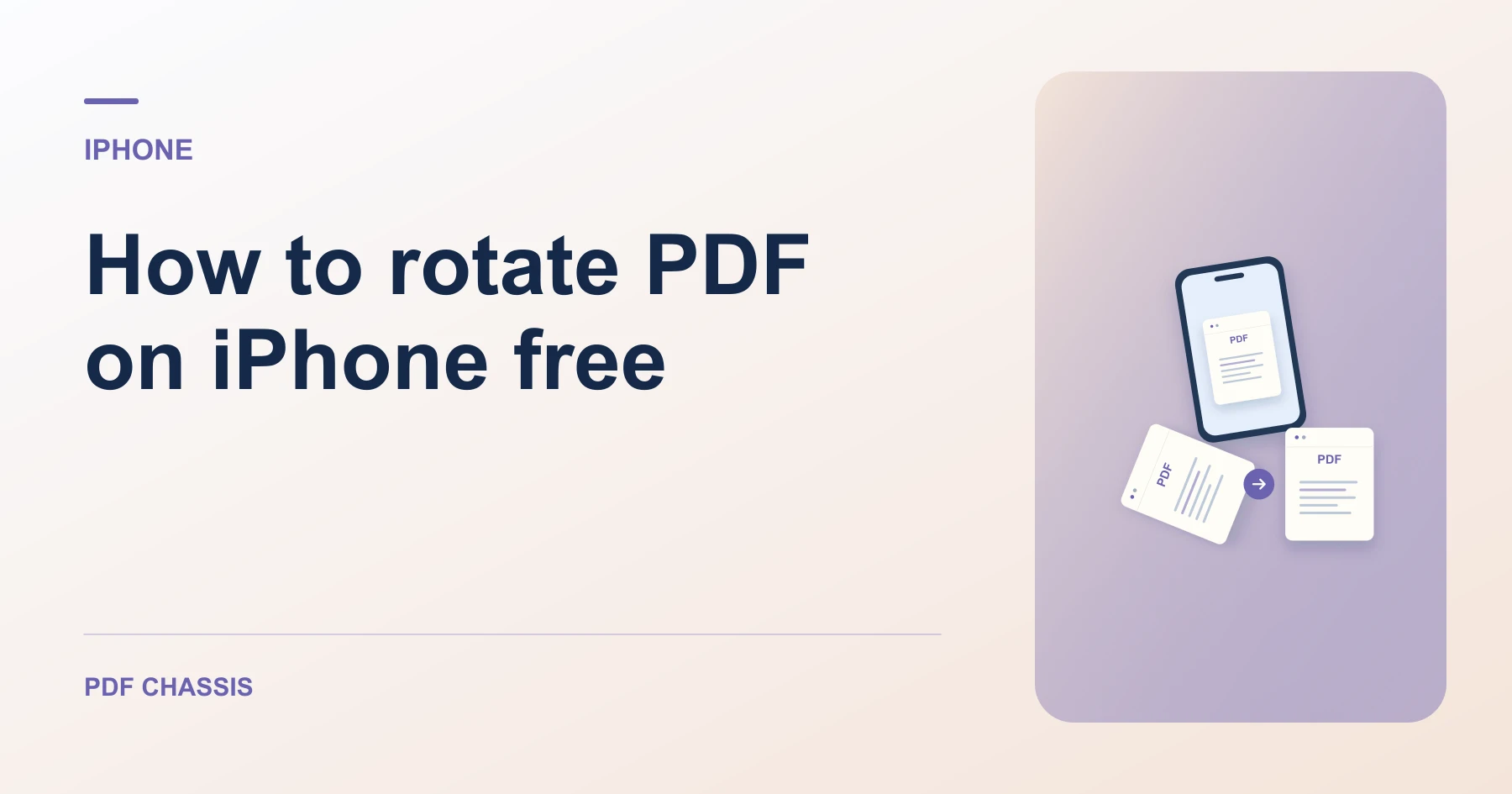
To understand how to rotate pdf on iphone free, open Safari and pick your document from the Files app without downloading paid mobile apps.
Knowing how to rotate pdf on iphone free makes submitting upright receipts, homework, and signed leases effortless on the go.
How to rotate PDF on iPhone free in mobile Safari
Fix camera scans and receipts on the go without installing app store utilities or creating accounts.
All mobile processing takes place directly in Safari sandbox memory.
For a related workflow, see How to rotate all pages in a PDF.
- On your iPhone, open Safari and go to Rotate PDF.
- Tap Choose PDF and select your document from the Files app.
- Choose your rotation angle (90° clockwise or 180° flip).
- Tap Rotate PDF and download the updated file to your iPhone.

Frequently asked questions
Where does iPhone save the rotated PDF?
The rotated PDF is saved into your Safari Downloads folder in the iOS Files app.
What if the result looks wrong?
A viewer can rotate its current view without saving the page orientation. Check the downloaded file instead.
Where can I find the result on iPhone?
Tap Rotate PDF and download the updated file to your iPhone.
Ready to try it?
Open Rotate PDFRotate PDF