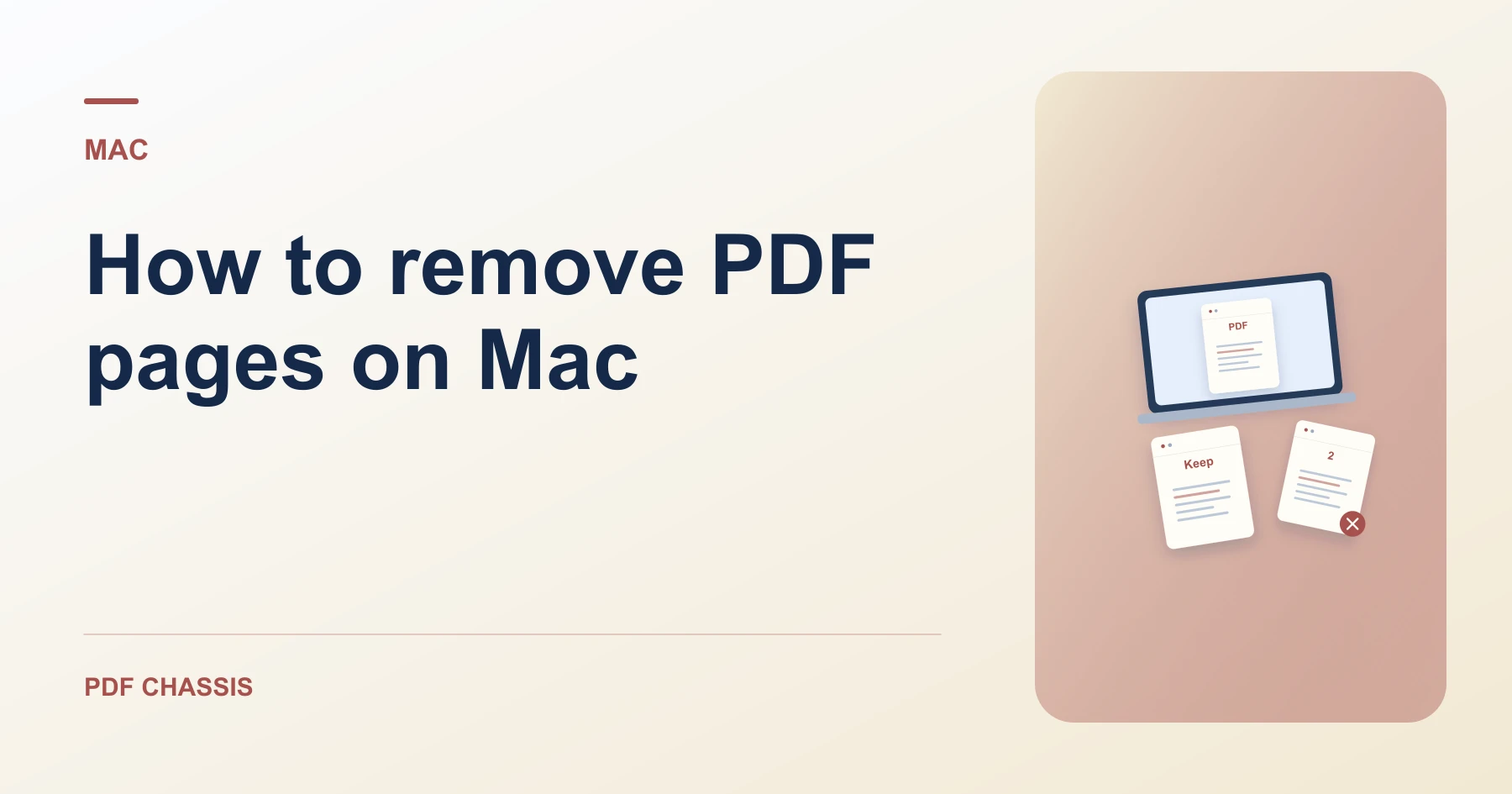
How to remove PDF pages on Mac
Here’s how to remove PDF pages on Mac with PDF Chassis. Deleting pages 2 and 5–7 from an eight-page draft leaves pages 1, 3, 4, and 8.
Learn how to remove PDF pages on Mac in Safari. Open Remove PDF pages when you’re ready.
If you’re working out how to remove PDF pages on Mac, use the example below to check what the tool returns. On Mac, keep a copy of the source where you can find it again.
How to remove PDF pages on Mac with PDF Chassis
In your browser, open PDF Chassis and navigate to the remove PDF pages tool in Safari. Find the source in Finder. For an iCloud file, let the download finish before selecting the PDF in your browser.
- In Safari on your Mac, open PDF Chassis and select remove PDF pages.
- Choose one source PDF.
- In Page numbers, type 2, 5-7 to remove those four pages.
- Select Remove PDF pages, then download the copy.
- Find the result in Safari’s downloads list or in Finder. Open it under a different filename so you can compare it with the source.
Try an example on Mac
A draft has an obsolete appendix. Compare the last two thumbnails in Preview after removing the appendix pages.
Check that the copy has four pages and that original page 8 is still last.

How to remove PDF pages on Mac if the result looks wrong
Keep at least one page. If you are trying to keep a few pages from a long file, extraction may be quicker.
For offline edits, delete selected thumbnails in Preview. Duplicate the source first and check annotations you need.
For a related workflow, see How to remove a PDF page.
Frequently asked questions
What should I check in the saved copy?
Check that the copy has four pages and that original page 8 is still last.
What if the result looks wrong?
Keep at least one page. If you are trying to keep a few pages from a long file, extraction may be quicker.
Where can I find the result on Mac?
Find the result in Safari’s downloads list or in Finder. Open it under a different filename so you can compare it with the source.
Ready to try it?
Open Remove PDF pagesRemove PDF pages