How to recover PDF pages on Windows
Here’s how to recover PDF pages on Windows with PDF Chassis. If a six-page report opens but page 5 is blank, check page 5 and its neighbors in the rebuilt file.
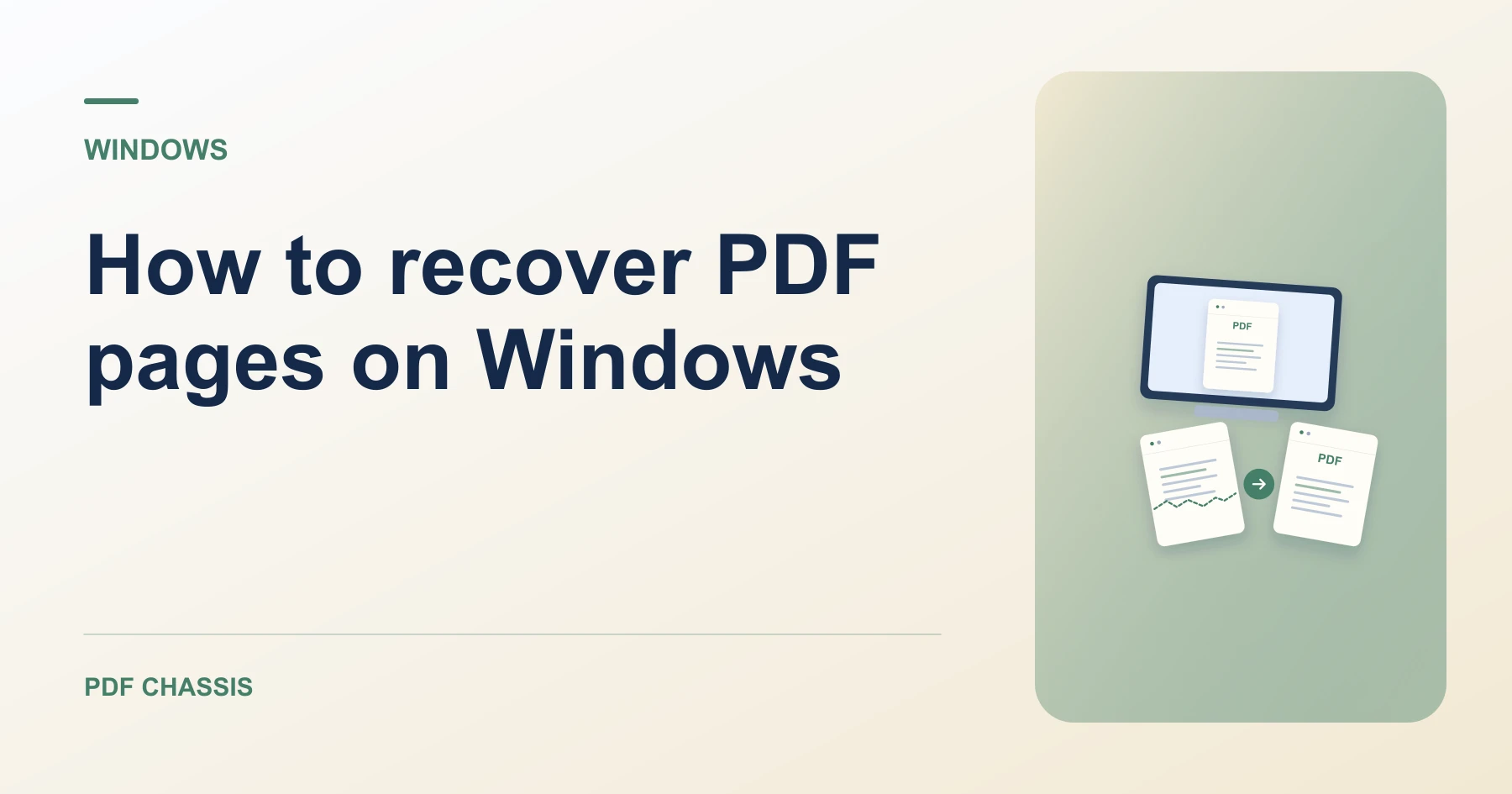
Learn how to recover PDF pages on Windows in Microsoft Edge. Open Recover PDF pages when you’re ready.
If you’re working out how to recover PDF pages on Windows, use the example below to check what the tool returns. On Windows, keep a copy of the source where you can find it again.
How to recover PDF pages on Windows with PDF Chassis
In your browser, open PDF Chassis and navigate to the recover PDF pages tool in Microsoft Edge. Find the source in File Explorer. If a OneDrive file is online-only, download it before using the browser’s file chooser.
- In Microsoft Edge on your Windows, open PDF Chassis and select recover PDF pages.
- Open the original in a viewer and note the pages that still appear.
- Choose the original in Recover PDF pages and start the rebuild.
- Download the recovered copy.
- Open the file from Edge’s downloads list or the download folder in File Explorer. Give the result a distinct name if you plan to share it.
Try an example on Windows
A partial download in File Explorer is unusually small. Download the source again before recovering the pages Edge can show.
Compare the page count and legibility. The recovered pages are images and may lose selectable text or interactive fields.

How to recover PDF pages on Windows if the result looks wrong
If the browser cannot render the document, download it again or ask the sender for a replacement.
Try opening the source in Edge first. If File Explorer shows an empty file or the browser cannot open a page, download a clean copy before trying again.
For a related workflow, see How to recover readable PDF pages.
Frequently asked questions
What should I check in the saved copy?
Compare the page count and legibility. The recovered pages are images and may lose selectable text or interactive fields.
What if the result looks wrong?
If the browser cannot render the document, download it again or ask the sender for a replacement.
Where can I find the result on Windows?
Open the file from Edge’s downloads list or the download folder in File Explorer. Give the result a distinct name if you plan to share it.
Ready to try it?
Open Recover PDF pagesRecover PDF pages