How to recover readable PDF pages
A damaged download sometimes still opens and renders even when a PDF editor cannot rewrite it. Here’s how to recover readable PDF pages and check the result.
Learn how to recover readable PDF pages. Open Recover PDF pages when you’re ready.
When you recover readable PDF pages, use the example below to check what the tool returns. Keep the source available so you can check the exported result.
Steps to recover readable PDF pages
- Try opening the original in a PDF viewer.
- If the pages render, choose the original in Recover PDF pages and save the rebuilt copy.
What to check
When you recover readable PDF pages, confirm the first and last pages and any page that previously showed an error. The recovered pages are images, so keep the original for selectable text or interactive fields.
For a related workflow, see How to check a partially recovered PDF.

Frequently asked questions
What should I check before I share the result?
Confirm the first and last pages and any page that previously showed an error. The recovered pages are images, so keep the original for selectable text or interactive fields.
What if the result looks wrong?
If the browser cannot render the document, download it again or ask the sender for a replacement.
What will this workflow produce?
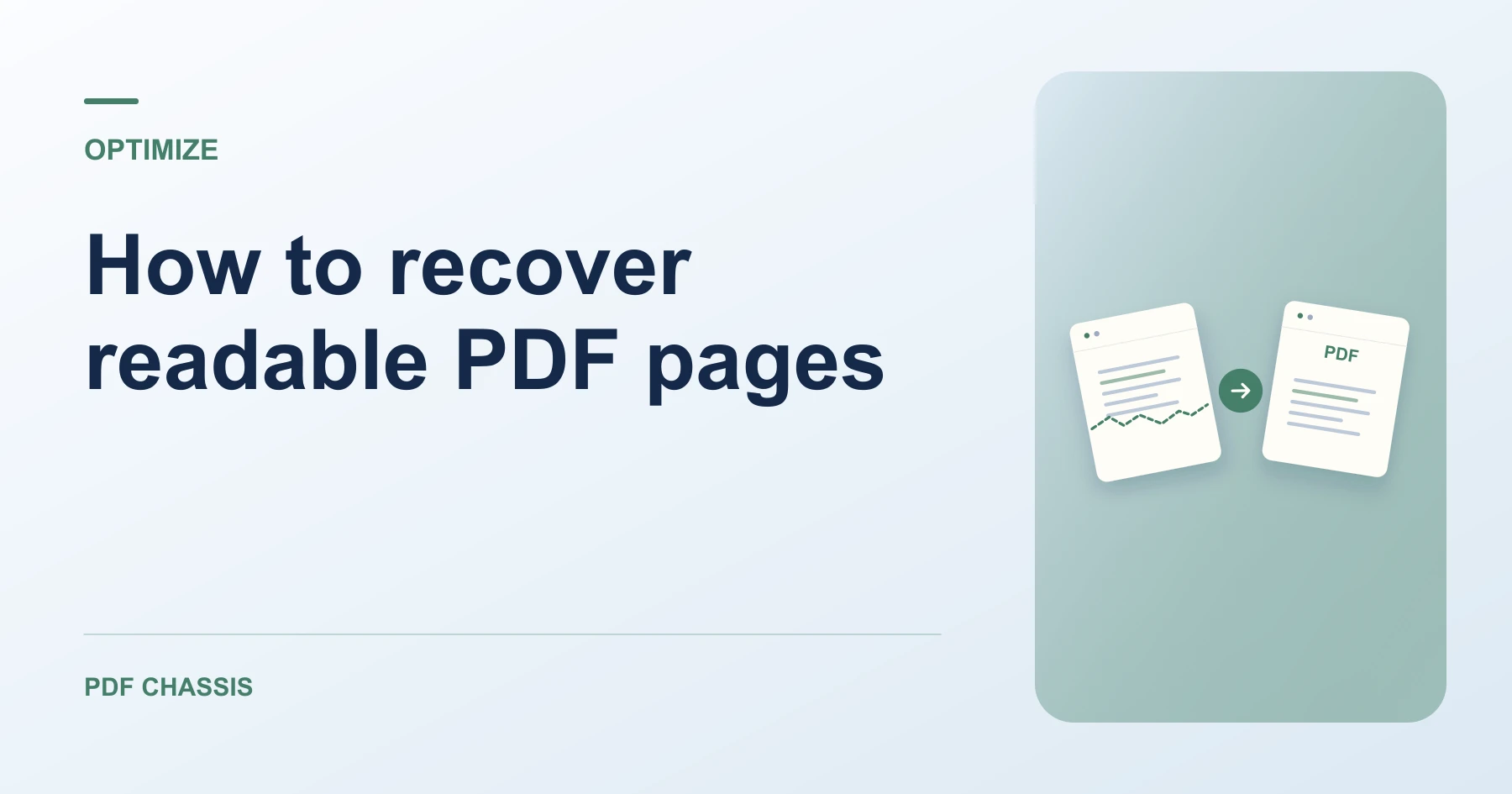
Damaged report.pdf → Rebuilt PDF copy. Compare the page count and legibility. The recovered pages are images and may lose selectable text or interactive fields.
Ready to try it?
Open Recover PDF pagesRecover PDF pages