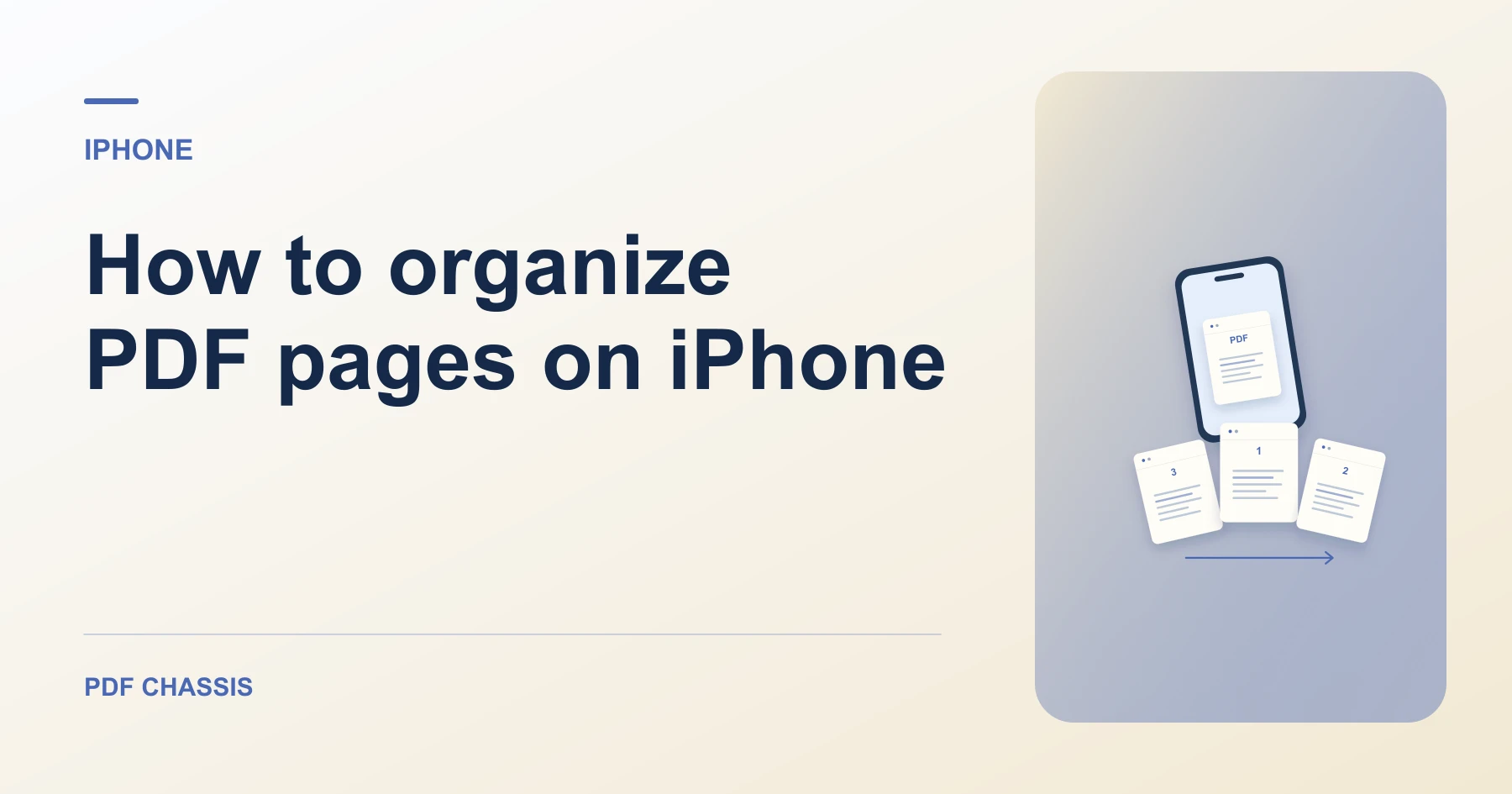
How to organize PDF pages on iPhone
Here’s how to organize PDF pages on iPhone with PDF Chassis. Move the summary on page 3 to the front while keeping pages 1, 2, and 4 in sequence.
Learn how to organize PDF pages on iPhone in Safari. Open Organize PDF when you’re ready.
If you’re working out how to organize PDF pages on iPhone, use the example below to check what the tool returns. On iPhone, keep a copy of the source where you can find it again.
How to organize PDF pages on iPhone with PDF Chassis
In your browser, open PDF Chassis and navigate to the organize PDF pages tool in Safari. Save the source to Files first if it is attached to a message. In Safari, use the file chooser and browse to the saved copy.
- In Safari on your iPhone, open PDF Chassis and select organize PDF pages.
- Choose the source PDF.
- Enter 3, 1-2, 4 under Page order to move the third page to the front.
- Select Organize PDF and download the reordered copy.
- Use Safari’s downloads list to open the result. If you need to send it from another app, open its saved copy in Files.
Try an example on iPhone
Move the cover photo scan to the front of a report. Write down the existing order before switching from Files to Safari.
Open the new copy and confirm the first page and the total page count.

How to organize PDF pages on iPhone if the result looks wrong
A repeated number produces a repeated page. To keep every page once, check the sequence before exporting.
Write down the page sequence before opening the file picker. On a small screen, keeping the original page positions handy makes checking the order easier.
For a related workflow, see How to organize PDF pages.
Frequently asked questions
What should I check in the saved copy?
Open the new copy and confirm the first page and the total page count.
What if the result looks wrong?
A repeated number produces a repeated page. To keep every page once, check the sequence before exporting.
Where can I find the result on iPhone?
Use Safari’s downloads list to open the result. If you need to send it from another app, open its saved copy in Files.
Ready to try it?
Open Organize PDFOrganize PDF