How to merge PDF on Windows
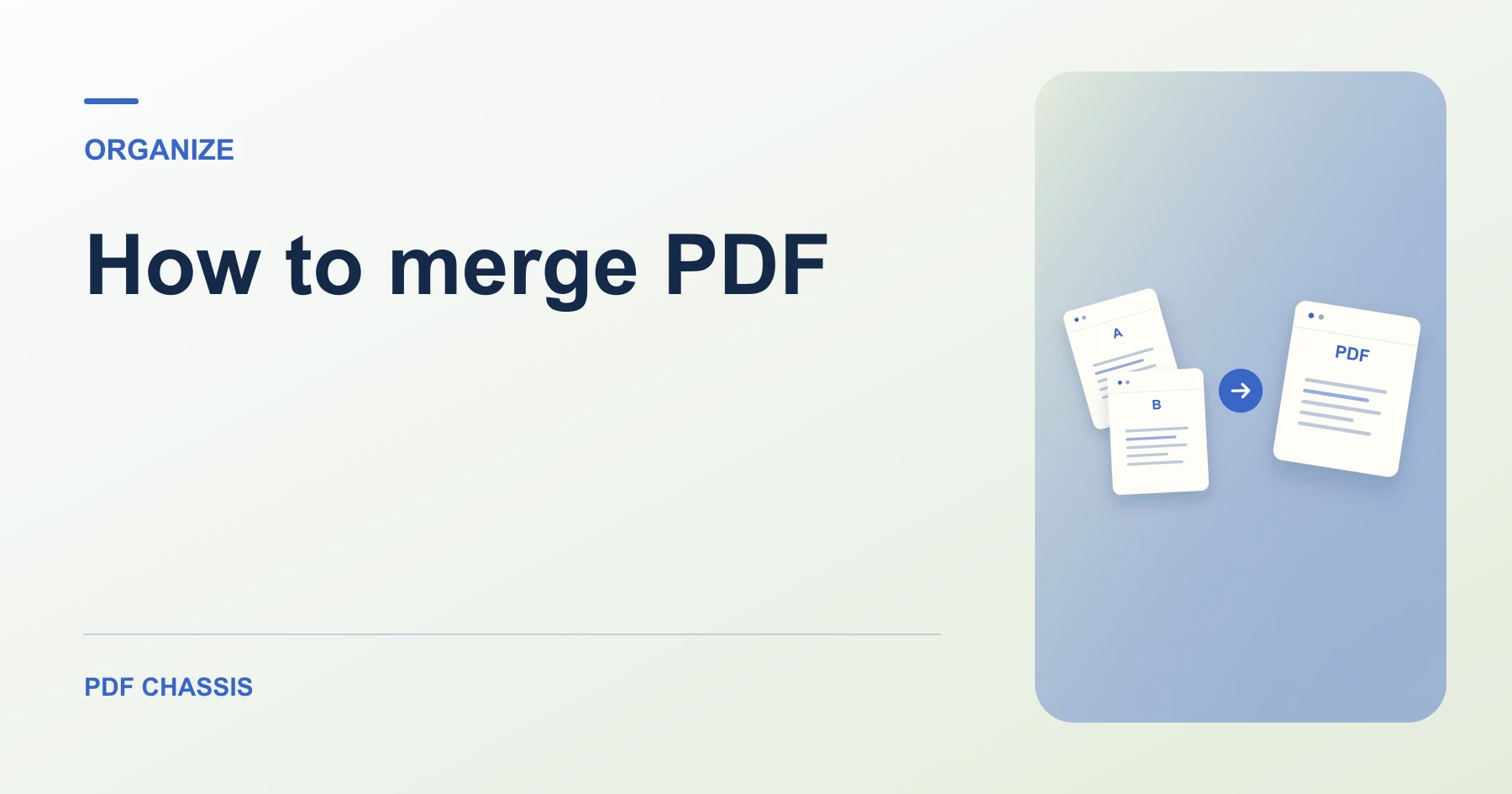
Here’s how to merge PDF on Windows with PDF Chassis. A one-page cover and three-page report should become one four-page PDF.
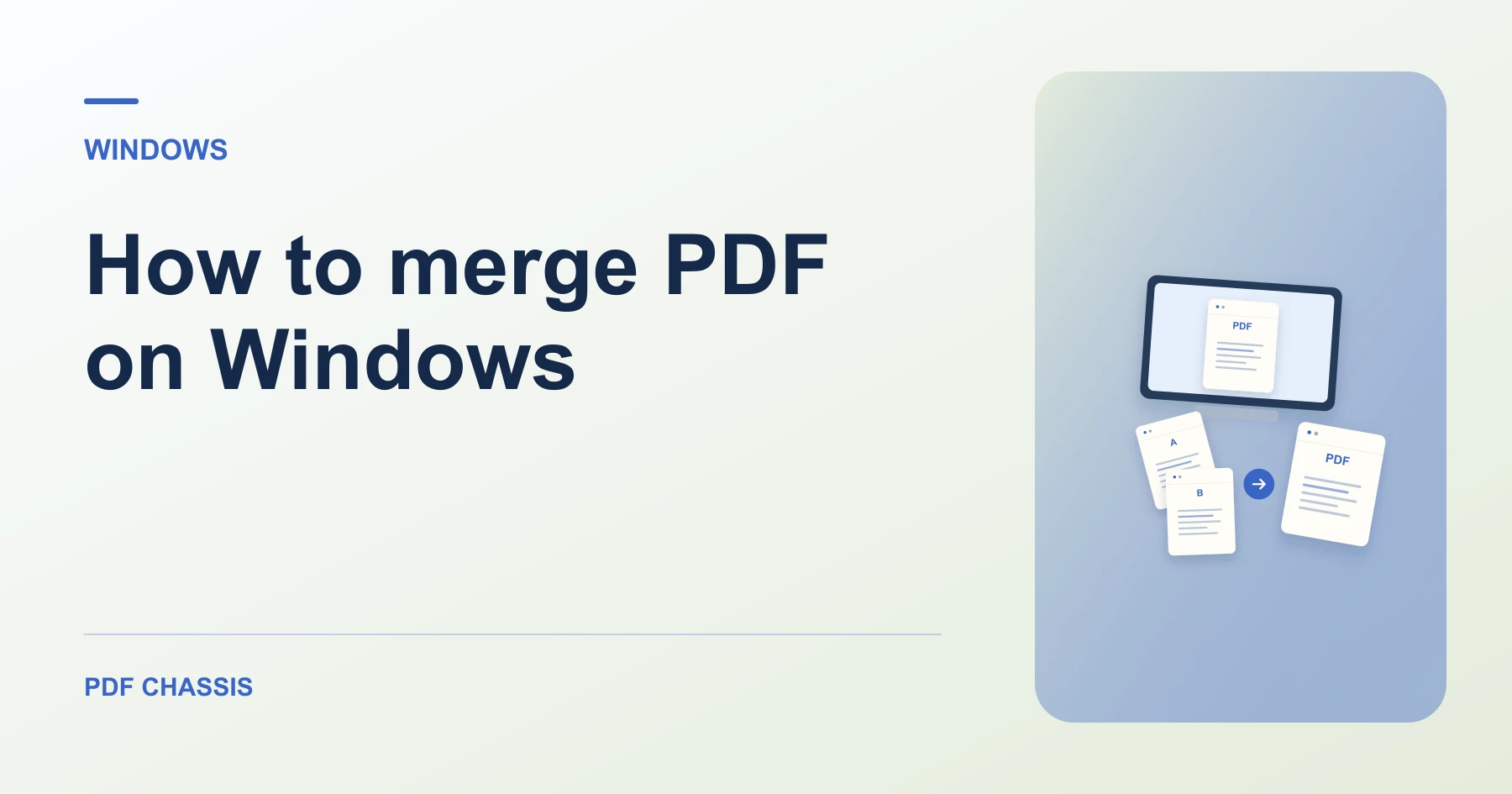
Learn how to merge PDF on Windows in Microsoft Edge. Open Merge PDF when you’re ready.
If you’re working out how to merge PDF on Windows, use the example below to check what the tool returns. On Windows, keep a copy of the source where you can find it again.
How to merge PDF on Windows with PDF Chassis
In your browser, open PDF Chassis and navigate to the merge PDF tool in Microsoft Edge. Find the source in File Explorer. If a OneDrive file is online-only, download it before using the browser’s file chooser.
- In Microsoft Edge on your Windows, open PDF Chassis and select merge PDF.
- Choose PDFs and add at least two source files.
- Use the up and down arrows to put the cover before the report.
- Select Merge PDF and download the result.
- Open the file from Edge’s downloads list or the download folder in File Explorer. Give the result a distinct name if you plan to share it.
Try an example on Windows
Collect the correct revisions in one File Explorer folder before merging. Check where the report begins in Edge.
Open the combined file and check that the report starts on page 2. Review any links or forms you need.

How to merge PDF on Windows if the result looks wrong
If a section starts on the wrong page, change the source order and merge again.
If you receive similarly named revisions, switch File Explorer to Details and check the modified dates before choosing the files. Verify their order inside the merge tool.
For a related workflow, see How to merge PDF.
Frequently asked questions
What should I check in the saved copy?
Open the combined file and check that the report starts on page 2. Review any links or forms you need.
What if the result looks wrong?
If a section starts on the wrong page, change the source order and merge again.
Where can I find the result on Windows?
Open the file from Edge’s downloads list or the download folder in File Explorer. Give the result a distinct name if you plan to share it.
Ready to try it?
Open Merge PDFMerge PDF