How to convert Word to PDF on Windows
Here’s how to convert Word to PDF on Windows with PDF Chassis. Export a Word agenda as a PDF before sharing it with people who only need to read it.
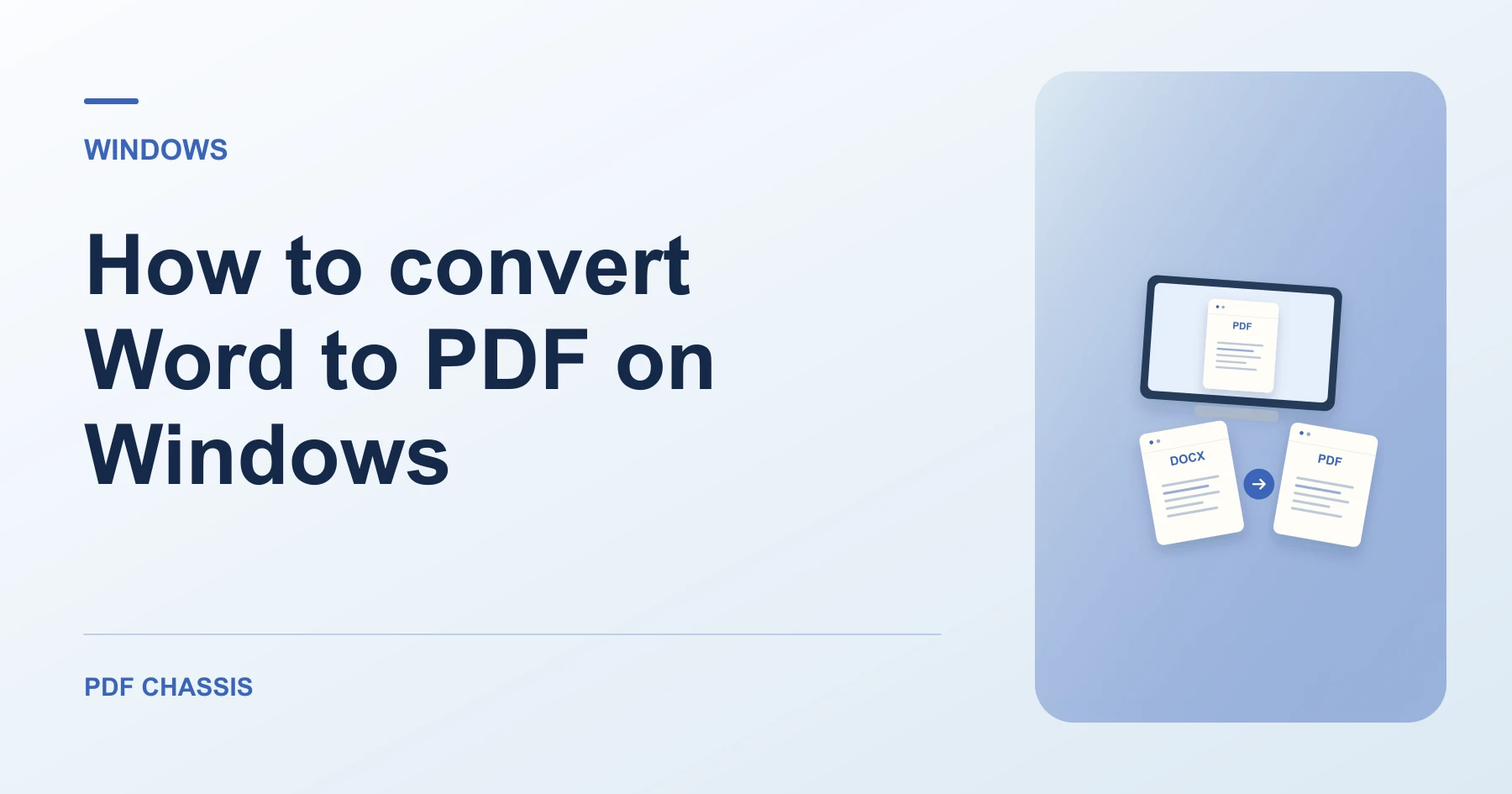
Learn how to convert Word to PDF on Windows in Microsoft Edge. Open Word to PDF when you’re ready.
If you’re working out how to convert Word to PDF on Windows, use the example below to check what the tool returns. On Windows, keep a copy of the source where you can find it again.
How to convert Word to PDF on Windows with PDF Chassis
In your browser, open PDF Chassis and navigate to the convert Word to PDF tool in Microsoft Edge. Find the source in File Explorer. If a OneDrive file is online-only, download it before using the browser’s file chooser.
- In Microsoft Edge on your Windows, open PDF Chassis and select convert Word to PDF.
- Save your current document as DOCX.
- Choose that file in Word to PDF and wait for conversion.
- Download the PDF and open it to inspect the output.
- Open the file from Edge’s downloads list or the download folder in File Explorer. Give the result a distinct name if you plan to share it.
Try an example on Windows
Convert a Word report with multiple sections. Compare page breaks and link destinations against the source in Word.
Compare page breaks, headings, tables, and links against the source.

How to convert Word to PDF on Windows if the result looks wrong
Complex Word layouts can change during browser conversion. Try the native export if exact formatting matters.
If Word is installed, compare with its own PDF export for documents with section breaks, tracked changes, or complex tables.
For a related workflow, see Which PDF conversion should I use?.
Frequently asked questions
What should I check in the saved copy?
Compare page breaks, headings, tables, and links against the source.
What if the result looks wrong?
Complex Word layouts can change during browser conversion. Try the native export if exact formatting matters.
Where can I find the result on Windows?
Open the file from Edge’s downloads list or the download folder in File Explorer. Give the result a distinct name if you plan to share it.
Ready to try it?
Open Word to PDFWord to PDF