How to convert text to PDF on Windows
Here’s how to convert text to PDF on Windows with PDF Chassis. Turn notes copied from a text editor into a PDF that keeps the reading order.
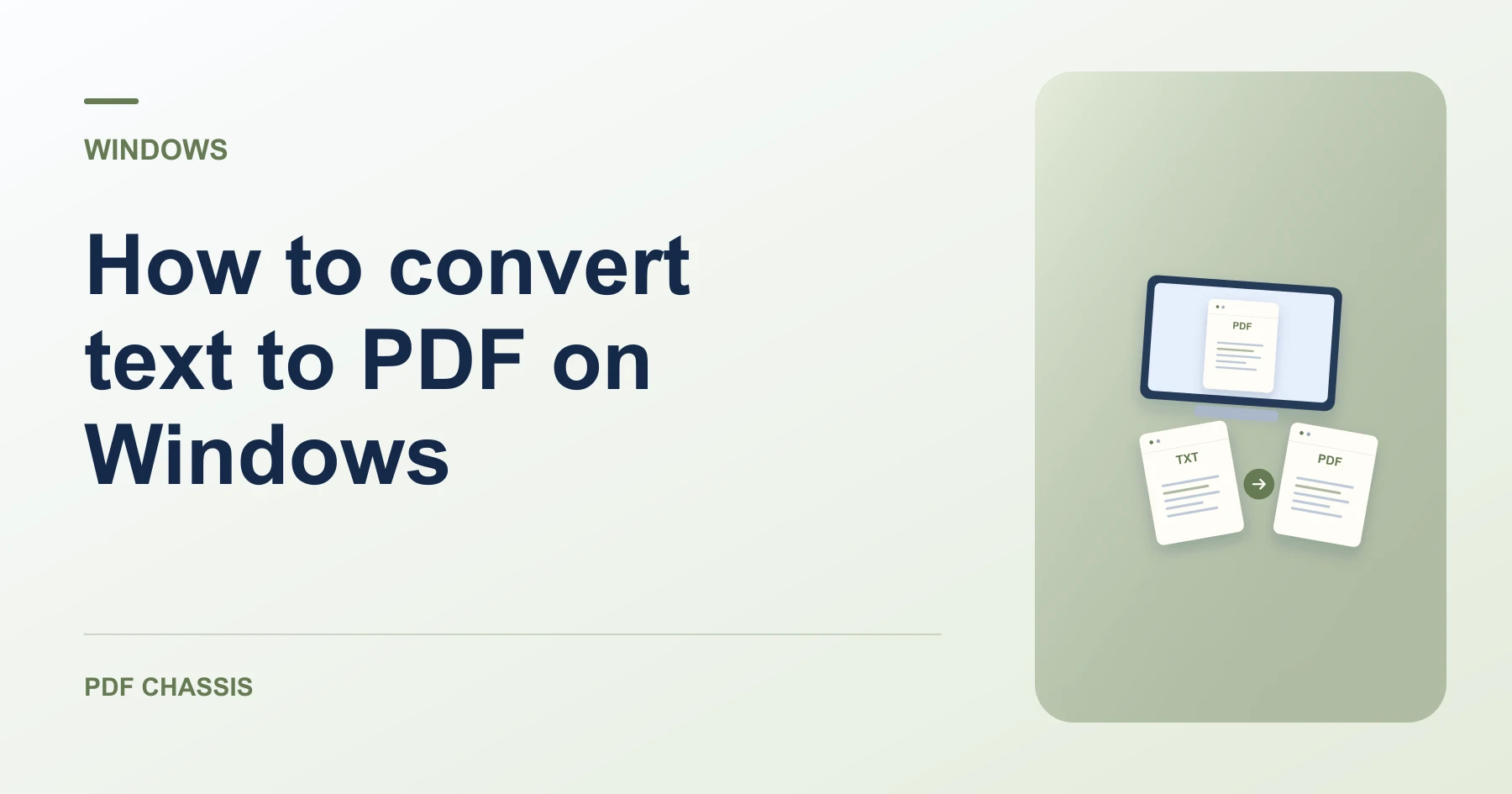
Learn how to convert text to PDF on Windows in Microsoft Edge. Open Text to PDF when you’re ready.
If you’re working out how to convert text to PDF on Windows, use the example below to check what the tool returns. On Windows, keep a copy of the source where you can find it again.
How to convert text to PDF on Windows with PDF Chassis
In your browser, open PDF Chassis and navigate to the convert text to PDF tool in Microsoft Edge. Copy the content from your editor or choose the supported file in File Explorer. Turn on file extensions if two files have similar names.
- In Microsoft Edge on your Windows, open PDF Chassis and select convert text to PDF.
- Paste text or select a TXT or Markdown file.
- Set the page size and any available page-number options.
- Convert the text and download the PDF.
- Open the file from Edge’s downloads list or the download folder in File Explorer. Give the result a distinct name if you plan to share it.
Try an example on Windows
Save UTF-8 meeting notes in Notepad and convert them. Check that accented characters display correctly in Edge.
Check wrapping, special characters, and whether the final line appears.

How to convert text to PDF on Windows if the result looks wrong
If you pasted styled text, check the preview and fix spacing in the source before exporting again.
Use Notepad for plain text and save with UTF-8 encoding when the document contains accented letters. Confirm the saved extension.
For a related workflow, see How to turn pasted text into PDF.
Frequently asked questions
What should I check in the saved copy?
Check wrapping, special characters, and whether the final line appears.
What if the result looks wrong?
If you pasted styled text, check the preview and fix spacing in the source before exporting again.
Where can I find the result on Windows?
Open the file from Edge’s downloads list or the download folder in File Explorer. Give the result a distinct name if you plan to share it.
Ready to try it?
Open Text to PDFText to PDF