How to convert text to PDF on iPhone free?
Learn How to convert text to pdf on iPhone free using Safari. Turn copied notes or text files into PDFs stored in your Files app.
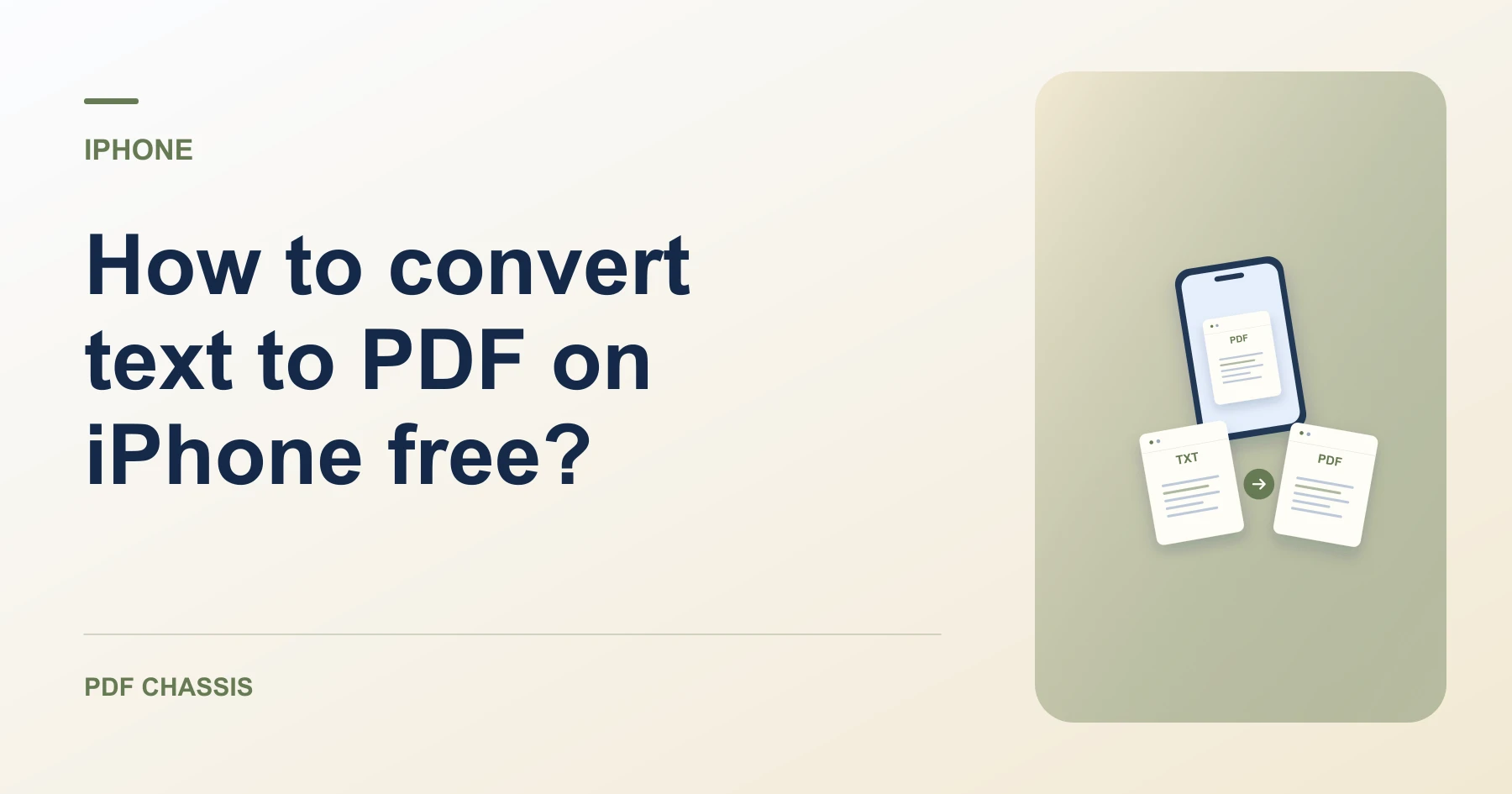
To discover How to convert text to pdf on iPhone free, paste text into Safari and generate a paginated PDF document instantly.
Practicing How to convert text to pdf on iPhone free allows creating professional documents on mobile without paid office apps.
Steps for How to convert text to PDF on iPhone free
The PDF is immediately ready to attach to emails.
All processing happens locally on your mobile device.
For a related workflow, see How to turn pasted text into PDF.
- In Safari on your iPhone, open PDF Chassis and select Text to PDF.
- Paste into the workspace and choose font size.
- Download the PDF directly into your iPhone Files app.

Frequently asked questions
What should I check in the saved copy?
Check wrapping, special characters, and whether the final line appears.
What if the result looks wrong?
If you pasted styled text, check the preview and fix spacing in the source before exporting again.
Where can I find the result on iPhone?
Download the PDF directly into your iPhone Files app.
Ready to try it?
Open Text to PDFText to PDF