How to convert PDF to Markdown on Windows
Here’s how to convert PDF to Markdown on Windows with PDF Chassis. Turn a digital report with selectable text into Markdown with sections for the source pages.
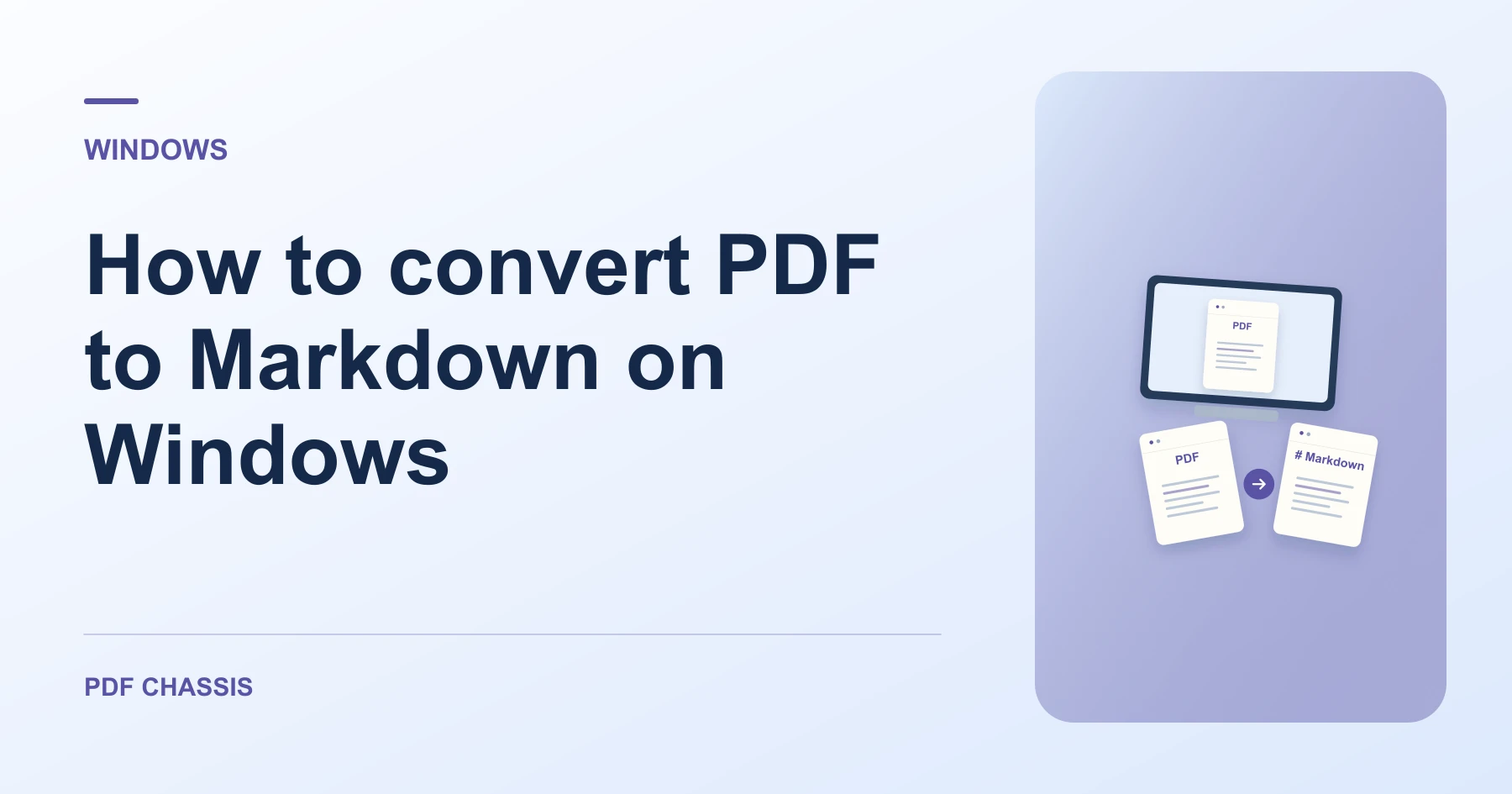
Learn how to convert PDF to Markdown on Windows in Microsoft Edge. Open PDF to Markdown when you’re ready.
If you’re working out how to convert PDF to Markdown on Windows, use the example below to check what the tool returns. On Windows, keep a copy of the source where you can find it again.
How to convert PDF to Markdown on Windows with PDF Chassis
In your browser, open PDF Chassis and navigate to the convert PDF to Markdown tool in Microsoft Edge. Find the source in File Explorer. If a OneDrive file is online-only, download it before using the browser’s file chooser.
- In Microsoft Edge on your Windows, open PDF Chassis and select convert PDF to Markdown.
- Try selecting a sentence in the source PDF.
- Choose the PDF and select PDF to Markdown.
- Save the Markdown file and open it in a text editor.
- Open the file from Edge’s downloads list or the download folder in File Explorer. Give the result a distinct name if you plan to share it.
Try an example on Windows
Export a digital handout to Markdown and open the file in Notepad. Check whether accented names and page breaks survived.
Check heading order, paragraph breaks, and any tables that span columns or pages.

How to convert PDF to Markdown on Windows if the result looks wrong
A scan with no selectable text needs text recognition before conversion. A visually complex layout can require manual cleanup.
Use Edge to check text selection and Notepad or another editor to inspect the downloaded Markdown. Verify characters such as accents and math symbols.
For a related workflow, see How to extract PDF notes to Markdown.
Frequently asked questions
What should I check in the saved copy?
Check heading order, paragraph breaks, and any tables that span columns or pages.
What if the result looks wrong?
A scan with no selectable text needs text recognition before conversion. A visually complex layout can require manual cleanup.
Where can I find the result on Windows?
Open the file from Edge’s downloads list or the download folder in File Explorer. Give the result a distinct name if you plan to share it.
Ready to try it?
Open PDF to MarkdownPDF to Markdown