How to convert PDF to Markdown on iPhone free?
Discover How to convert pdf to markdown on iPhone free using Safari to export structured text into your mobile notes app.
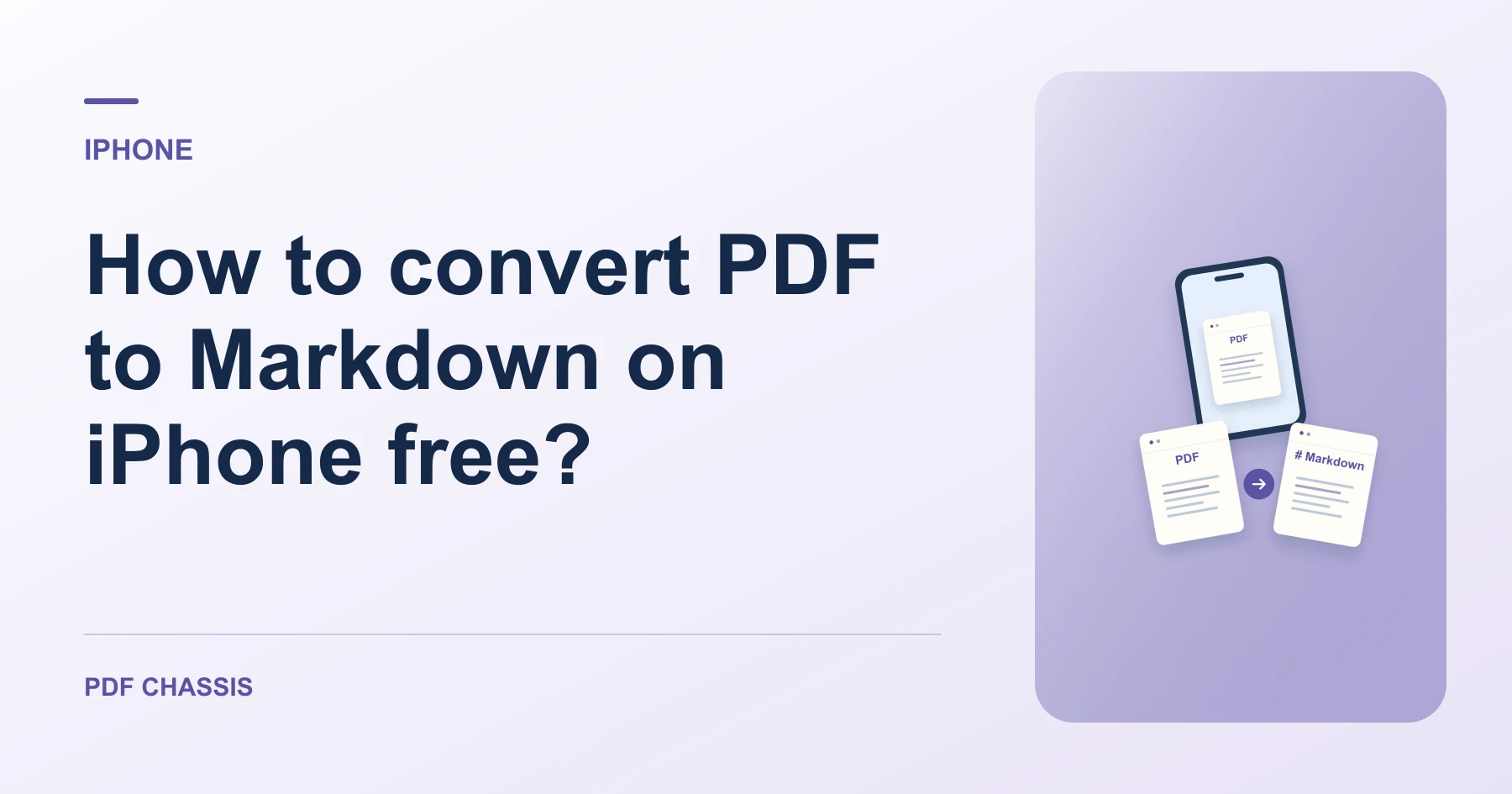
To understand How to convert pdf to markdown on iPhone free, select your PDF in Safari and download the structured .md note.
Practicing How to convert pdf to markdown on iPhone free allows students to study and revise lecture notes anywhere on mobile.
Steps for How to convert PDF to Markdown on iPhone free
The converted file saves directly to your device storage.
No account creation or third-party apps are needed.
For a related workflow, see How to extract PDF notes to Markdown.
- In Safari on your iPhone, open PDF Chassis and select PDF to Markdown.
- Choose your PDF from the Files app.
- Download the .md file and open in your favorite mobile editor.

Frequently asked questions
What should I check in the saved copy?
Check heading order, paragraph breaks, and any tables that span columns or pages.
What if the result looks wrong?
A scan with no selectable text needs text recognition before conversion. A visually complex layout can require manual cleanup.
Where can I find the result on iPhone?
Download the .md file and open in your favorite mobile editor.
Ready to try it?
Open PDF to MarkdownPDF to Markdown