How to convert PDF to JPG on iPhone free?
Learn How to convert pdf to jpg on iPhone free using Safari. Turn any PDF page into an image ready for messaging or social posting.
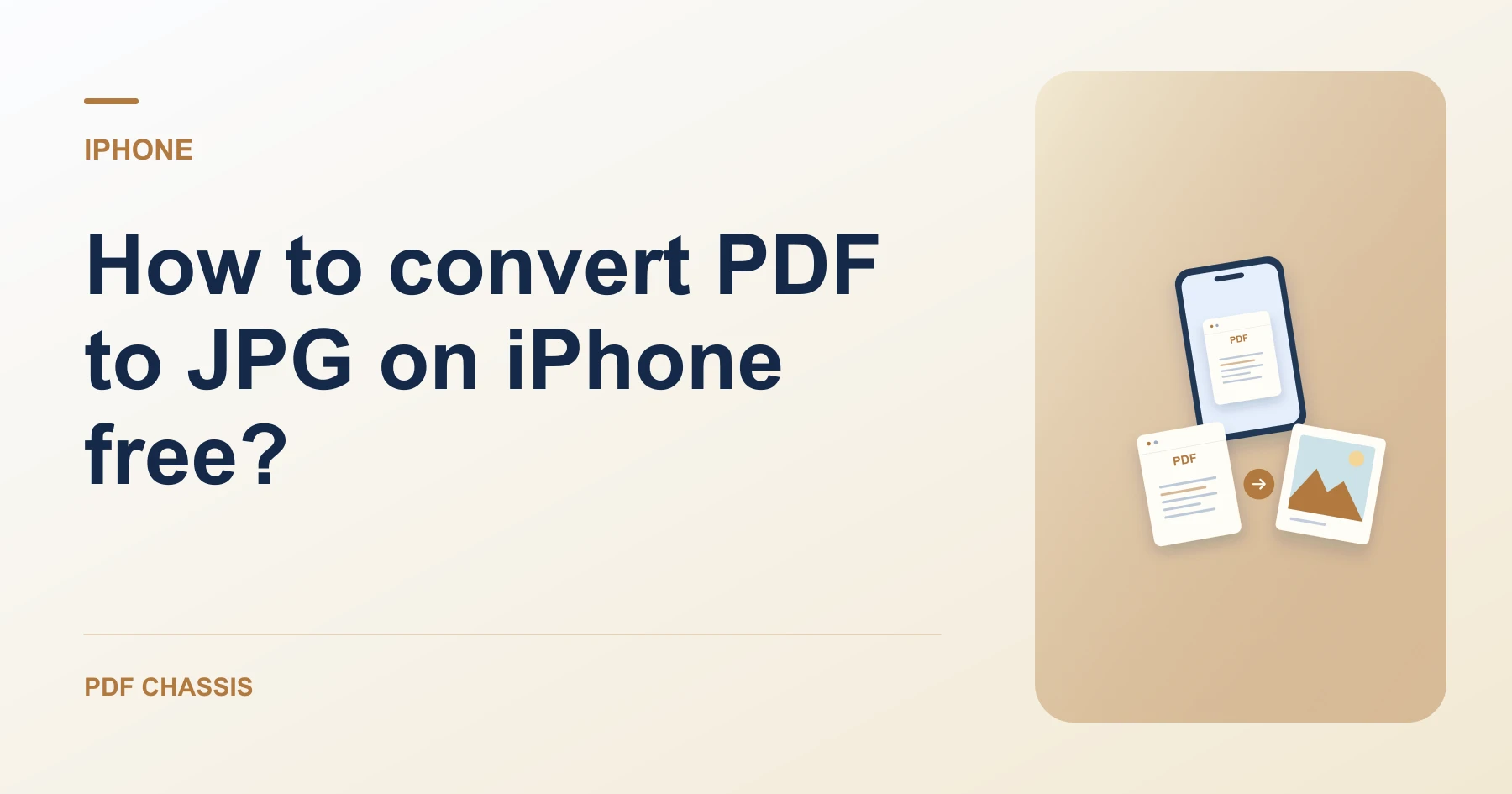
To understand How to convert pdf to jpg on iPhone free, open your document in Safari and select the specific page to export.
Practicing How to convert pdf to jpg on iPhone free lets you share document snippets without sending entire multi-megabyte files.
Steps for How to convert PDF to JPG on iPhone free
You can save single images directly to Photos by long-pressing.
ZIP files for multipage documents expand automatically in Files.
For a related workflow, see How to export one PDF page as a JPG.
- In Safari on your iPhone, open PDF Chassis and select PDF to JPG.
- Choose your PDF from the Files app.
- Tap PDF to JPG and save the exported image.

Frequently asked questions
What should I check in the saved copy?
Open the extracted JPGs and check that they show the intended pages at a readable size.
What if the result looks wrong?
The resulting JPG is an image. Keep the PDF if you still need selectable text, links, or forms.
Where can I find the result on iPhone?
Tap PDF to JPG and save the exported image.
Ready to try it?
Open PDF to JPGPDF to JPG