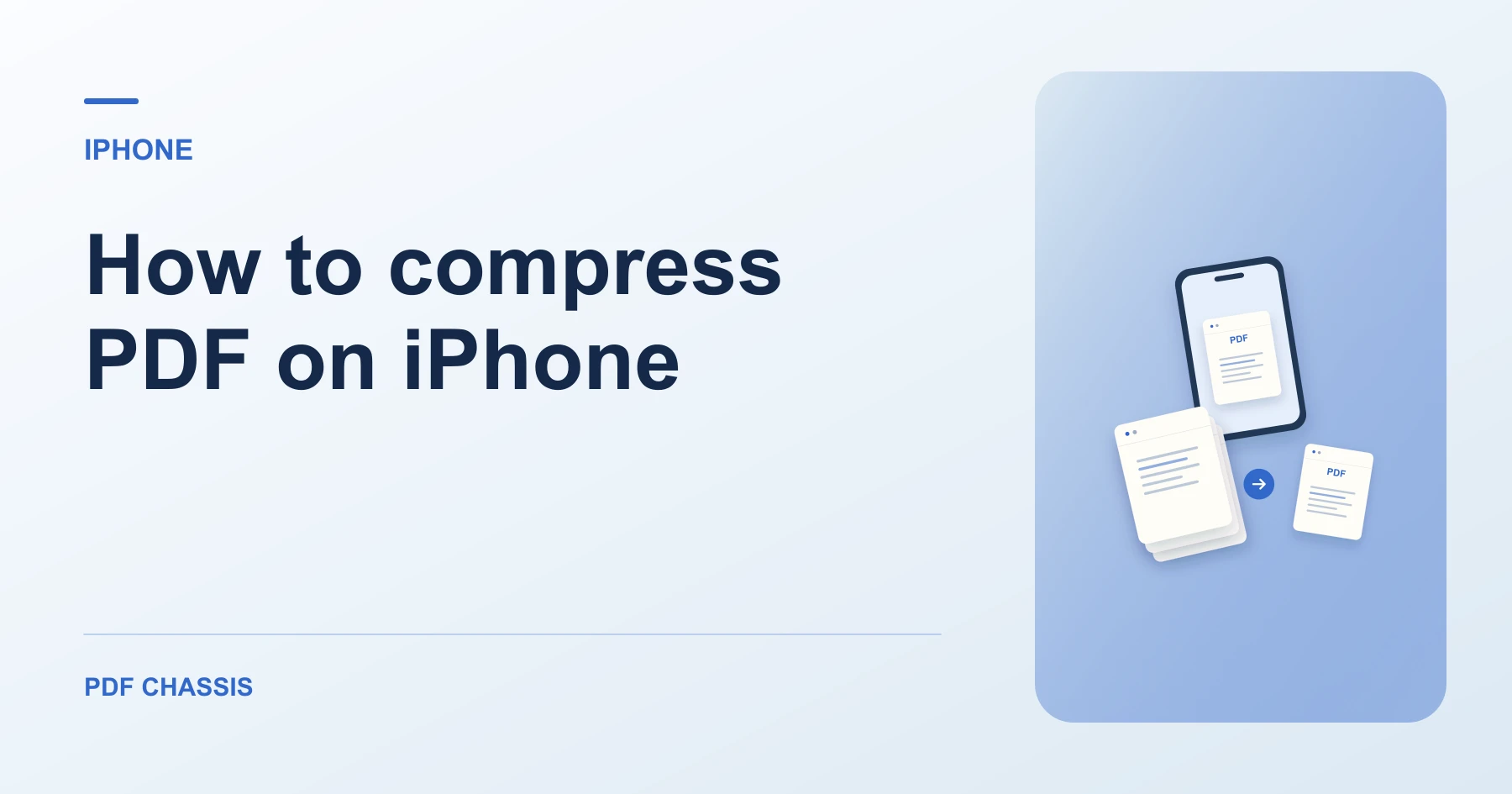
How to compress PDF on iPhone
Here’s how to compress PDF on iPhone with PDF Chassis. For a scanned attachment, check both the file size and the smallest text before you send the new copy.
Here’s how to compress PDF on iPhone using PDF Chassis. In Safari, choose a document from Files and start with Lossless when the original image quality matters.
If you’re working out how to compress PDF on iPhone for an upload limit, check the saved file’s size in Files. For scans, zoom in on small text and stamps before you send the new copy.
How to compress PDF on iPhone with PDF Chassis
In your browser, open PDF Chassis and navigate to the compress PDF tool in Safari. Save the source to Files first if it is attached to a message. In Safari, use the file chooser and browse to the saved copy.
If the PDF is still attached to an email or message, open the share sheet and save a copy to Files. Use a name you can distinguish from the smaller copy. This makes it easier to choose the right attachment later.
After choosing Lossless, compare the original and result sizes. If the file already fits, save it. When a scan needs further reduction, try Basic and check a dense page before moving to a stronger mode.
- In Safari on your iPhone, open PDF Chassis and select compress PDF.
- Choose PDF File and select the source.
- Start with Lossless if the original image quality matters. Try Basic if the file is still above your limit.
- Run the compressor, compare the original and result, then save the smaller copy when available.
- Use Safari’s downloads list to open the result. If you need to send it from another app, open its saved copy in Files.
Try an example on iPhone
A scanned form from Mail exceeds a 2 MB upload cap. Compare its smallest field labels before saving the new PDF to Files.
Open the two copies at the same zoom. Check the downloaded PDF’s actual size before attaching it.
For a portal with a 2 MB cap, verify the saved file’s size in Files. Touch and hold the file, then choose Get Info. When the portal counts all attachments together, leave room for the other files.
Open the original and the saved PDF at similar zoom. Look at a pale stamp, the smallest amount on the page, and any handwritten marks. Confirm the page count and make sure the last page opens.

How to compress PDF on iPhone if the result looks wrong
A PDF that is already optimized may come back at its original size. Try Target size for a strict upload limit and verify the result.
In Files, touching and holding a PDF and choosing Compress creates a ZIP. The attachment inside still has its original PDF format and may save little space.
If you have a specific cap, follow the target-size workflow. Check the downloaded result because a target is a size to aim for. If the output misses it, decide whether stronger compression or a larger upload limit is acceptable.
When an attachment includes pages the recipient doesn’t need, you can remove those pages from a copy before trying another compression pass.
For a related workflow, see compress a PDF to 1 MB.
Frequently asked questions
Where does Safari save my compressed PDF?
Open Safari’s Downloads list and tap the PDF. You can also look in the Downloads folder in Files. Its location depends on your Safari settings.
Does Compress in the Files app make the PDF itself smaller?
Files creates a ZIP archive. Use a PDF compressor if the recipient needs a smaller file that still ends in .pdf.
What should I do if a scan still exceeds the upload limit?
Try Target size, then check the actual downloaded size and zoom in on the smallest print. Keep the original if the saved copy is hard to read.
Ready to try it?
Open Compress PDFCompress PDF