How to compare PDF text?
Need to know how to compare pdf text across revisions? Follow this step-by-step guide to run side-by-side text diffing and spot subtle contract modifications.
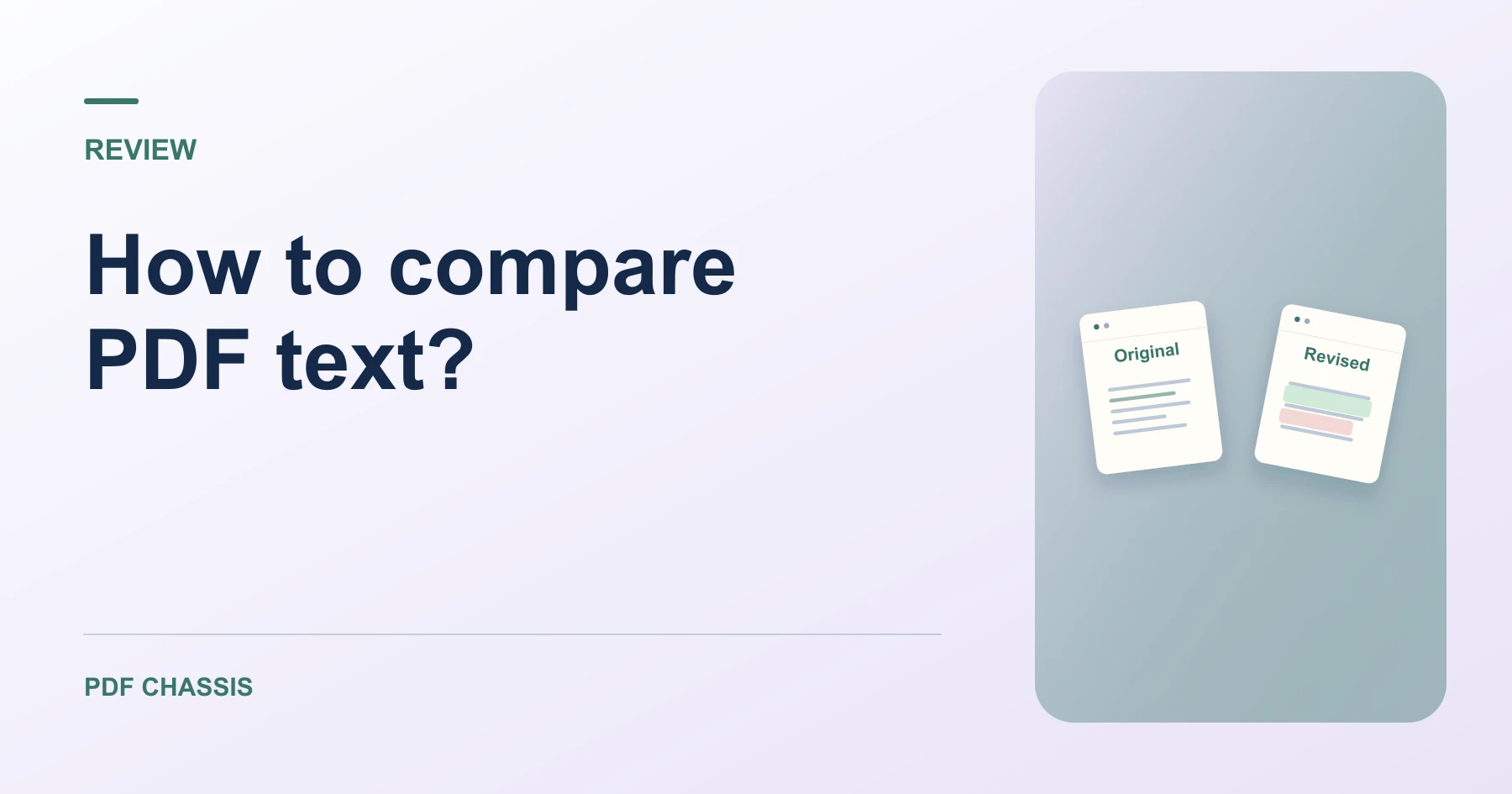
If you are researching how to compare pdf text?, using an in-browser diff utility allows detecting text modifications without paid software subscriptions.
Understanding how to compare pdf text? helps legal professionals, editors, and students audit revised contracts, manuscripts, and specifications.
Steps for how to compare PDF text?
The tool extracts selectable text streams and runs side-by-side diff algorithms.
All processing runs 100% locally in browser memory with zero server uploads.
For a related workflow, see How to compare PDF versions.
- In your browser, open PDF Chassis and select Compare PDF text.
- Choose your original document and revised document in the workspace.
- Click Compare to analyze text differences.
- Review highlighted changes and download your summary report.

Frequently asked questions
What types of differences are detected?
Added clauses, deleted sentences, modified figures, and punctuation updates are identified.
What if the result looks wrong?
Scanned pages can lack selectable text. Use text recognition or review those pages visually.
What will this workflow produce?
Original & revised draft → Text comparison diff report. Check each flagged page against both sources. Inspect image and formatting changes separately.
Ready to try it?
Open Compare PDF textCompare PDF text