How to choose a position for PDF page numbers
A page number can compete with an existing logo, footer, or signature. Here’s how to choose a position for PDF page numbers and check the result.
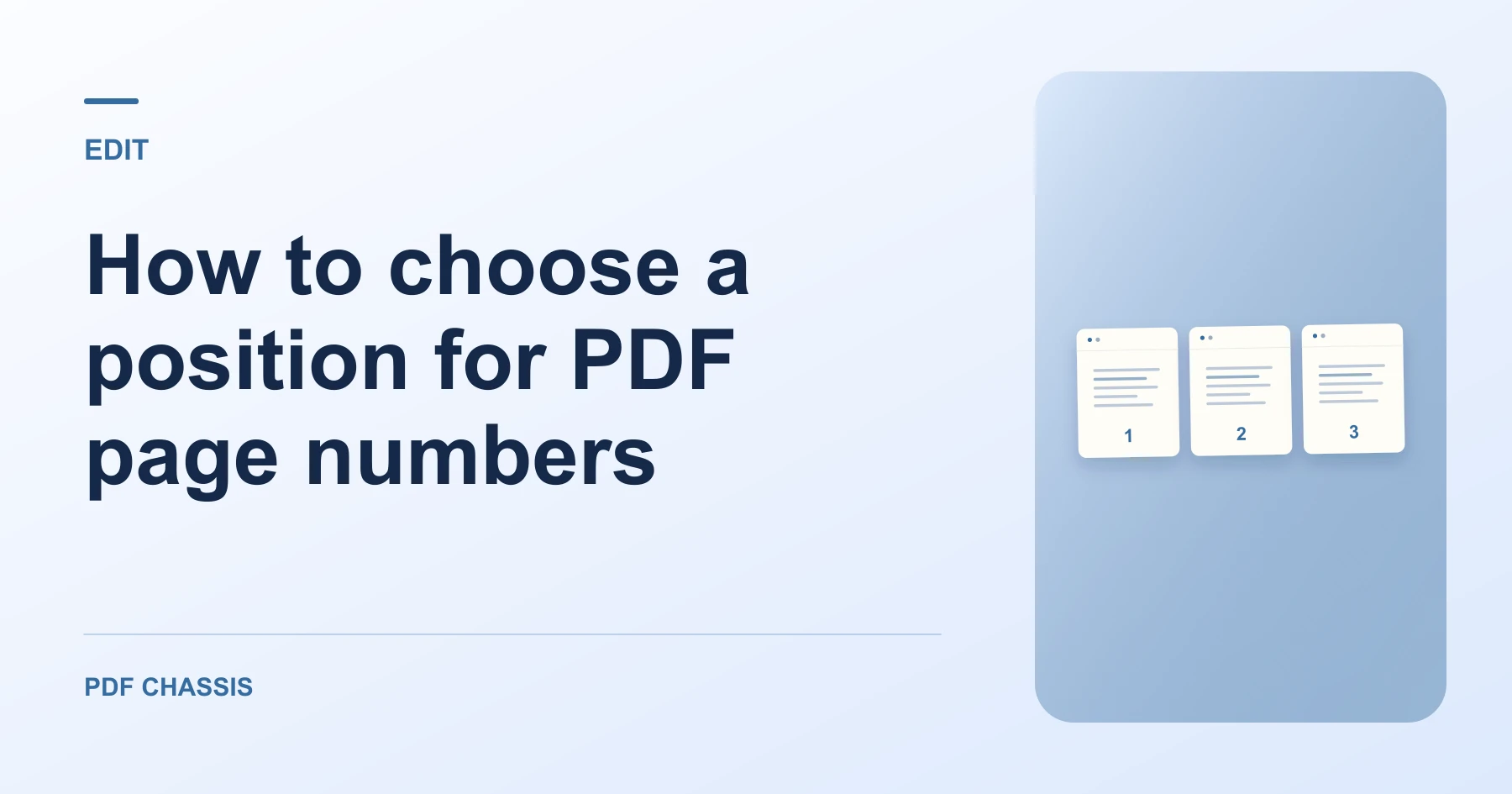
Learn how to choose a position for PDF page numbers. Open Add page numbers when you’re ready.
When you choose a position for PDF page numbers, use the example below to check what the tool returns. Keep the source available so you can check the exported result.
Steps to choose a position for PDF page numbers
- Inspect the lower left, center, and right of representative pages.
- Pick the position with sufficient room, then save and review the output.
What to check
When you choose a position for PDF page numbers, test pages with different widths or margins, because the same position can sit differently on each page.
For a related workflow, see How to add page numbers to a PDF report.

Frequently asked questions
What should I check before I share the result?
Test pages with different widths or margins, because the same position can sit differently on each page.
What if the result looks wrong?
If the number overlaps a footer, choose a different position and export again.
What will this workflow produce?
Footer with a logo → Number on a clear side. Open the first and last pages and check that the numbers fit within the margins.
Ready to try it?
Open Add page numbersAdd page numbers