How to scan to PDF on iPhone?
Here is how to scan to pdf on iphone using Safari and your camera to convert paper documents into a single PDF stored in your Files app.
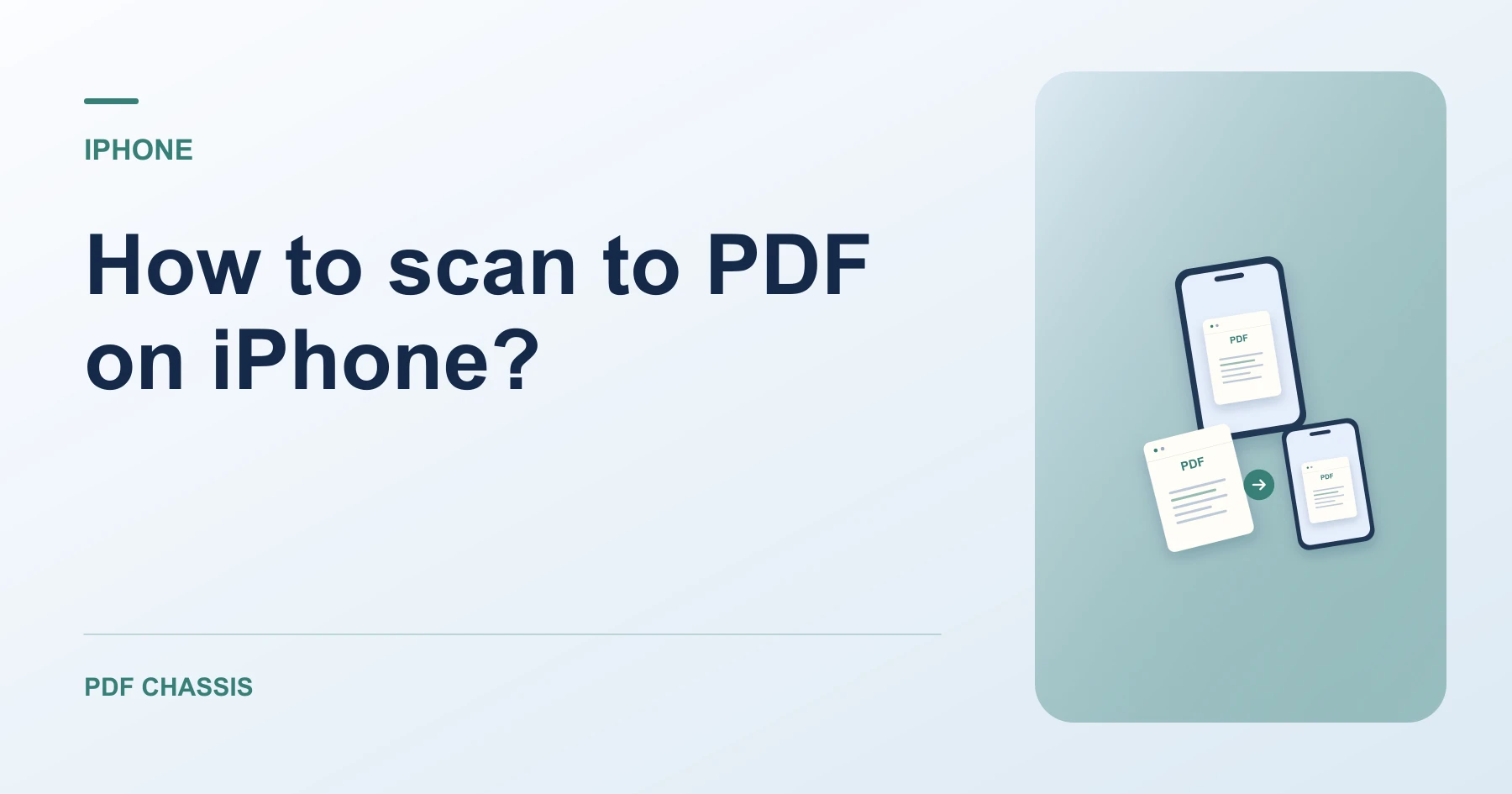
If you need to know how to scan to pdf on iphone, open Safari, navigate to Scan to PDF, and tap the photo capture button.
Discovering how to scan to pdf on iphone simplifies sending signed lease agreements, expense receipts, or medical forms on the go.
Steps for how to scan to PDF on iPhone
Natural window light creates sharp, readable text on iPhone cameras.
Exported documents download straight into your Files Downloads folder.
For a related workflow, see How to scan documents to PDF.
- In Safari on your iPhone, open PDF Chassis and select Scan to PDF.
- Tap Choose Images and select Take Photo to capture your page.
- Tap Convert to PDF and save the finished document to Files.

Frequently asked questions
What should I check in the saved copy?
Zoom in on dates and totals. Check that no edge was cut off and that the pages are upright.
What if the result looks wrong?
Rephotograph blurred or shadowed pages. Converting them to PDF cannot restore details absent from the images.
Where can I find the result on iPhone?
Tap Convert to PDF and save the finished document to Files.
Ready to try it?
Open Scan to PDFScan to PDF