How to scan multiple pages into one PDF?
Follow this guide on how to scan multiple pages into one pdf so you can package multi-sheet forms, book excerpts, or contracts together.
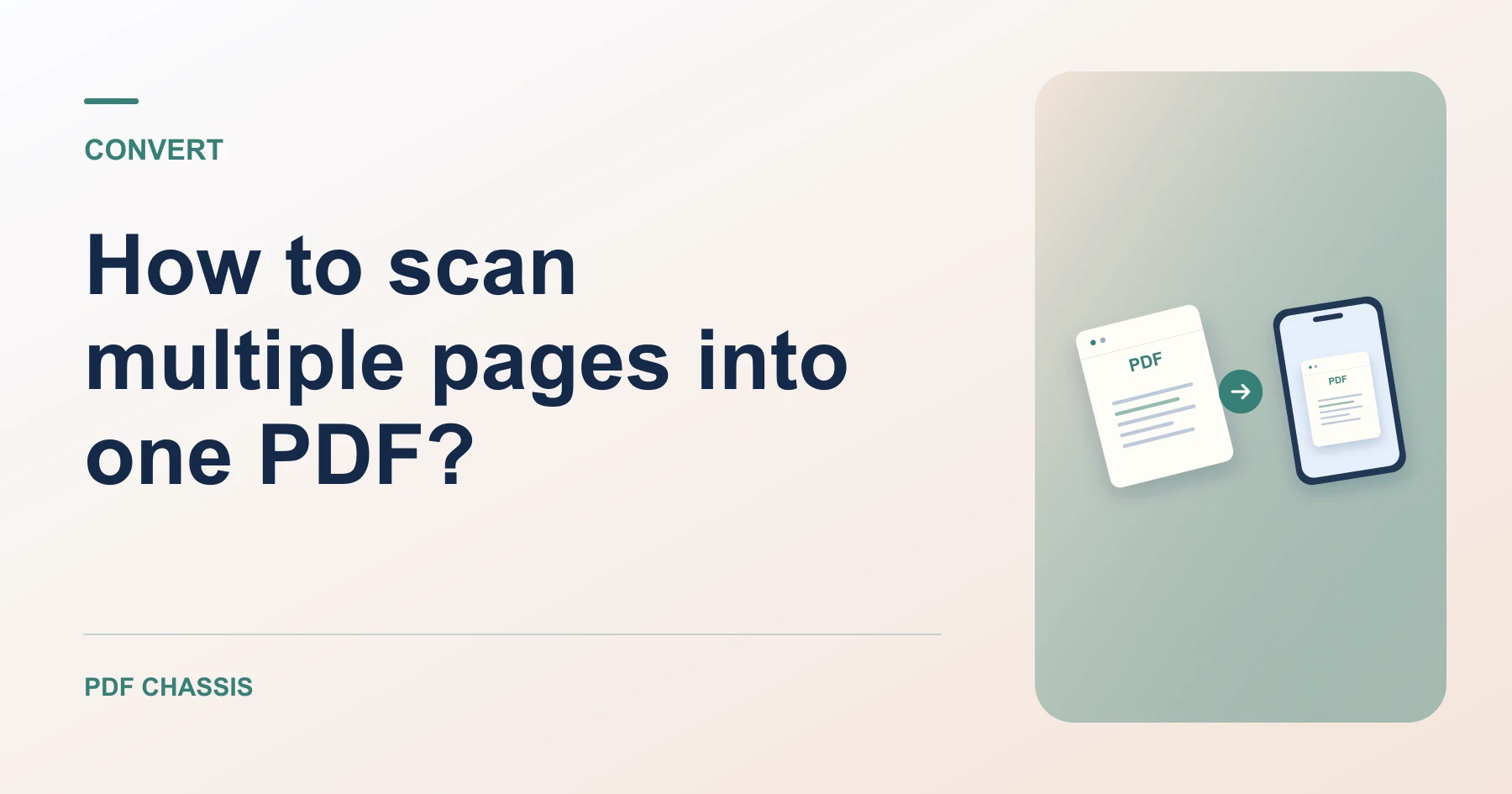
Learning how to scan multiple pages into one pdf prevents cluttering email inboxes with dozens of disconnected image attachments.
When you understand how to scan multiple pages into one pdf, you can easily arrange page order and set uniform paper dimensions.
Steps for how to scan multiple pages into one PDF
Setting uniform paper dimensions like A4 creates a professional packet.
All images are embedded sequentially into the single document.
For a related workflow, see How to scan documents to PDF.
- In your browser, open PDF Chassis and select Scan to PDF.
- Take photos of all pages in numerical order.
- Select all photos together in Scan to PDF.
- Adjust page order with arrows and download one combined PDF.

Frequently asked questions
What should I check in the saved copy?
Zoom in on dates and totals. Check that no edge was cut off and that the pages are upright.
What if the result looks wrong?
Rephotograph blurred or shadowed pages. Converting them to PDF cannot restore details absent from the images.
What will this workflow produce?
Pages 1, 2, 3 Photos → Combined 3-page PDF. Zoom in on dates and totals. Check that no edge was cut off and that the pages are upright.
Ready to try it?
Open Scan to PDFScan to PDF