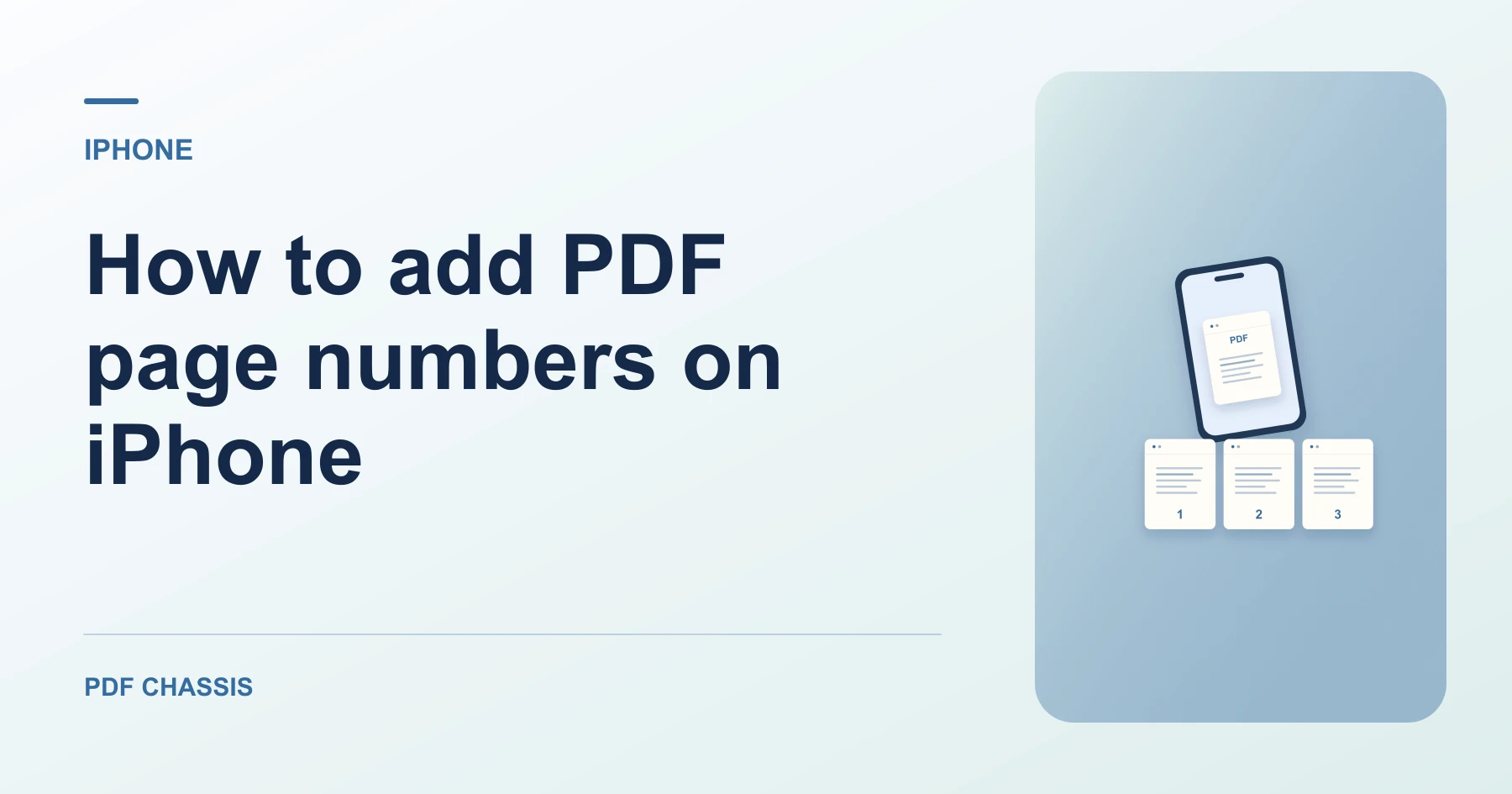
How to add PDF page numbers on iPhone
Here’s how to add PDF page numbers on iPhone with PDF Chassis. Start a three-page appendix at 7 so the displayed numbers read 7, 8, and 9.
Learn how to add PDF page numbers on iPhone in Safari. Open Add page numbers when you’re ready.
If you’re working out how to add PDF page numbers on iPhone, use the example below to check what the tool returns. On iPhone, keep a copy of the source where you can find it again.
How to add PDF page numbers on iPhone with PDF Chassis
In your browser, open PDF Chassis and navigate to the add PDF page numbers tool in Safari. Save the source to Files first if it is attached to a message. In Safari, use the file chooser and browse to the saved copy.
- In Safari on your iPhone, open PDF Chassis and select add PDF page numbers.
- Choose the PDF to number.
- Set the starting number and select a left, center, or right position.
- Apply the numbers and download the PDF.
- Use Safari’s downloads list to open the result. If you need to send it from another app, open its saved copy in Files.
Try an example on iPhone
Number a three-page appendix from 7. Pinch to zoom on the first and last footers in Files.
Open the first and last pages and check that the numbers fit within the margins.

How to add PDF page numbers on iPhone if the result looks wrong
If the number overlaps a footer, choose a different position and export again.
Open the saved PDF from Files and pinch to zoom on the footer. Small labels can be easy to miss at phone width.
For a related workflow, see How to add page numbers to a PDF report.
Frequently asked questions
What should I check in the saved copy?
Open the first and last pages and check that the numbers fit within the margins.
What if the result looks wrong?
If the number overlaps a footer, choose a different position and export again.
Where can I find the result on iPhone?
Use Safari’s downloads list to open the result. If you need to send it from another app, open its saved copy in Files.
Ready to try it?
Open Add page numbersAdd page numbers