How to extract a PDF appendix
An appendix can be shared on its own while the main report stays with the original. Here’s how to extract a PDF appendix and check the result.
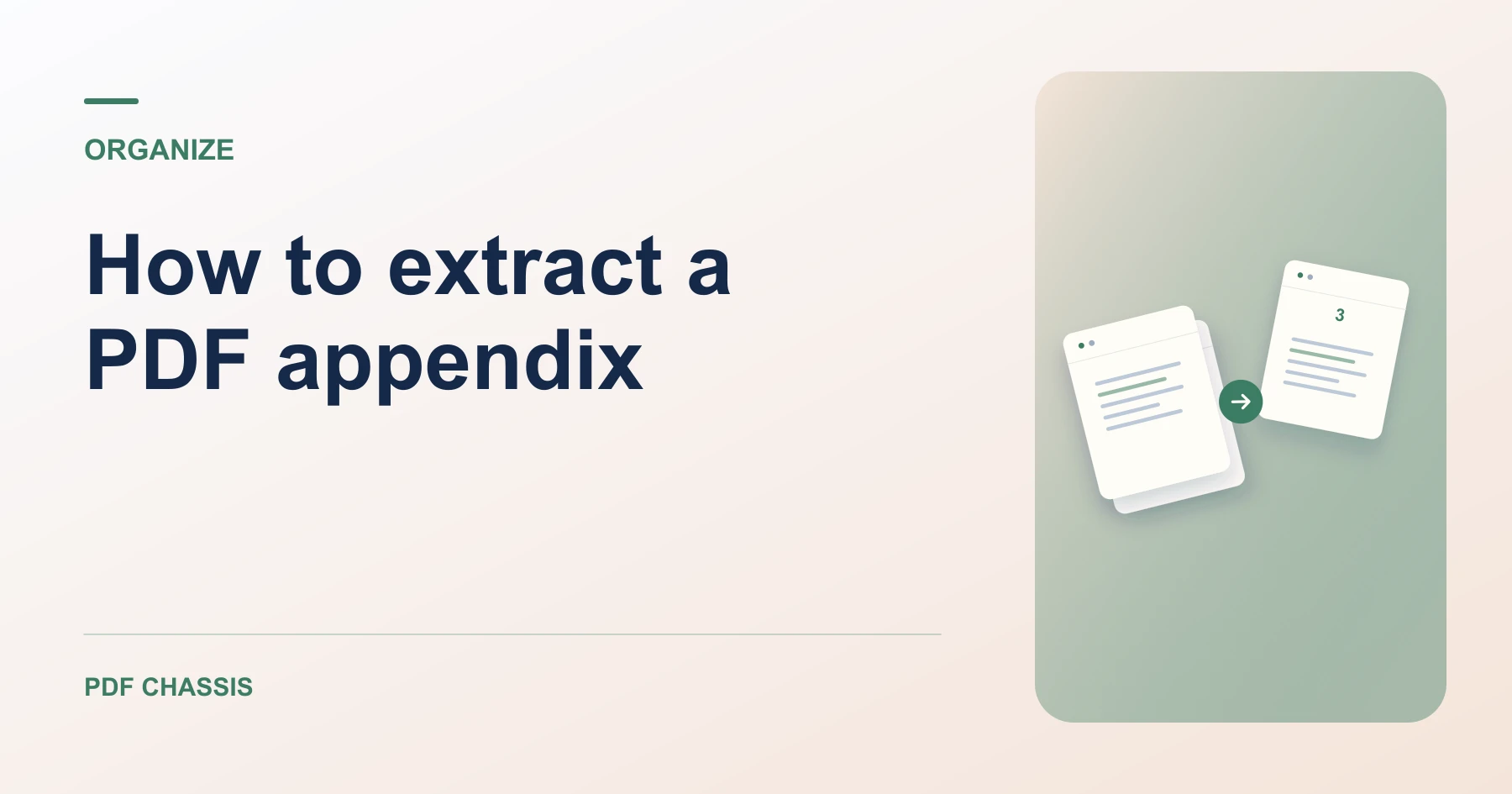
Learn how to extract a PDF appendix. Open Extract PDF pages when you’re ready.
When you extract a PDF appendix, use the example below to check what the tool returns. Keep the source available so you can check the exported result.
Steps to extract a PDF appendix
- Find the appendix’s first and last pages using the viewer’s page counter, then enter 15-19 in Extract PDF pages.
What to check
When you extract a PDF appendix, open the saved copy and check that it begins at the appendix heading and ends before any unrelated section.
For a related workflow, see How to extract PDF pages.

Frequently asked questions
What should I check before I share the result?
Open the saved copy and check that it begins at the appendix heading and ends before any unrelated section.
What if the result looks wrong?
For one output per page, use Split PDF’s Extract mode and leave Merge selected pages into one PDF unchecked.
What will this workflow produce?
Pages 15–19 → Appendix PDF. The new PDF has two pages. Confirm the totals page appears before the summary.
Ready to try it?
Open Extract PDF pagesExtract PDF pages