Combine JPG to PDF
Discover how to combine jpg to pdf photos into a single unified document with custom page ordering and standardized page sizes.
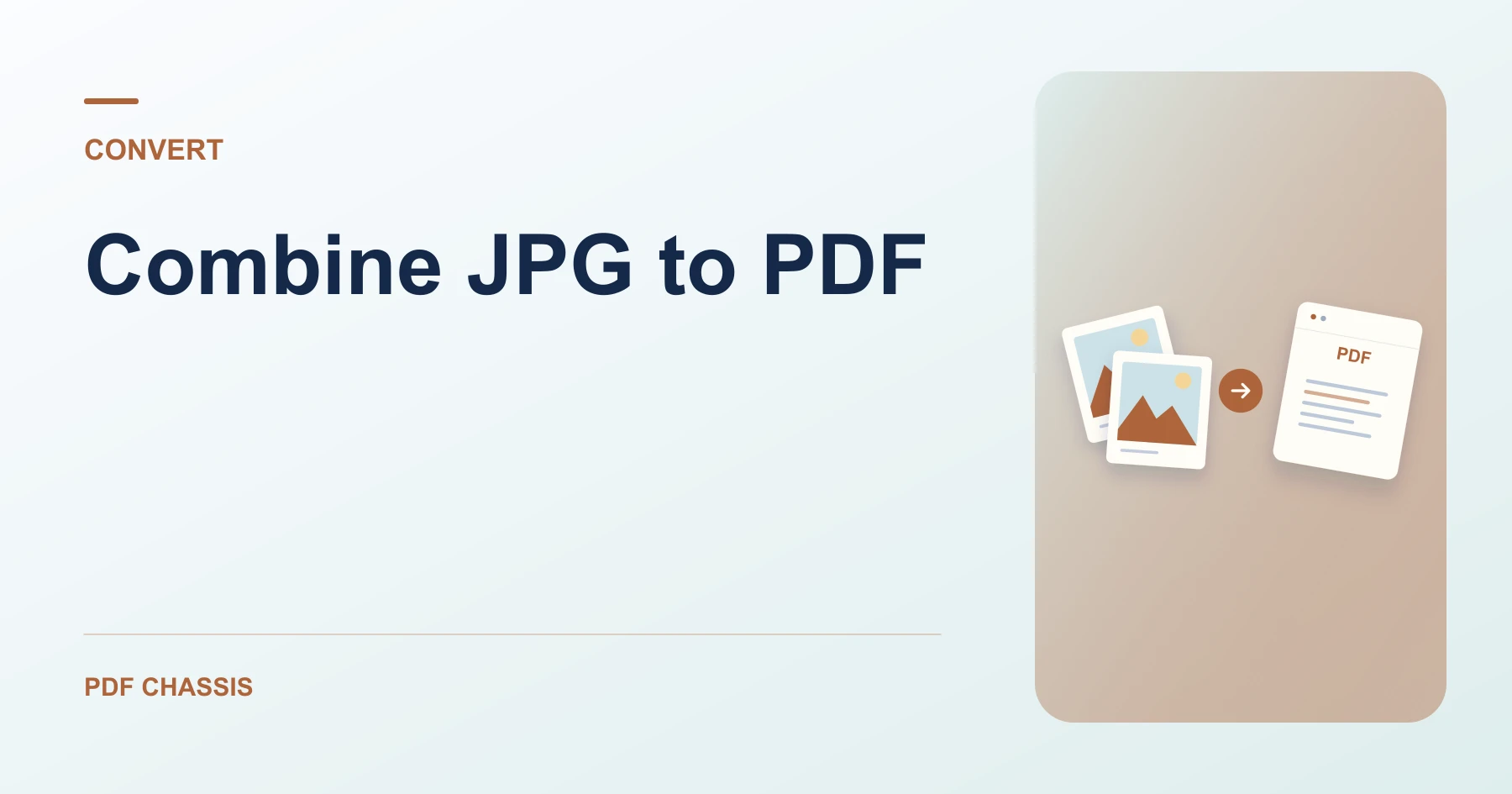
When you combine jpg to pdf, you consolidate scattered camera shots and photo receipts into one clean, paginated file.
Learning to combine jpg to pdf makes submitting multipage visa applications, receipts, and project portfolios fast and orderly.
Steps for combine JPG to PDF
Each image occupies its own individual page in the final PDF.
You can preview each photo before downloading the result.
For a related workflow, see How to convert one JPG to PDF.
- In your browser, open PDF Chassis and select JPG to PDF.
- Select multiple JPG files simultaneously.
- Use the arrow controls to set the desired sequence.
- Select Convert to PDF to generate the multipage file.

Frequently asked questions
What should I check in the saved copy?
Check the margins, image orientation, and page size before submitting the file.
What if the result looks wrong?
If an image looks clipped, try a standard page size and check its orientation in the source viewer.
What will this workflow produce?
Photos 1, 2, 3 → Combined.pdf. Check the margins, image orientation, and page size before submitting the file.
Ready to try it?
Open JPG to PDFJPG to PDF