How to choose a page size for HTML to PDF
Match the PDF sheet to the format the recipient will print or submit. Here’s how to choose a page size for HTML to PDF and check the result.
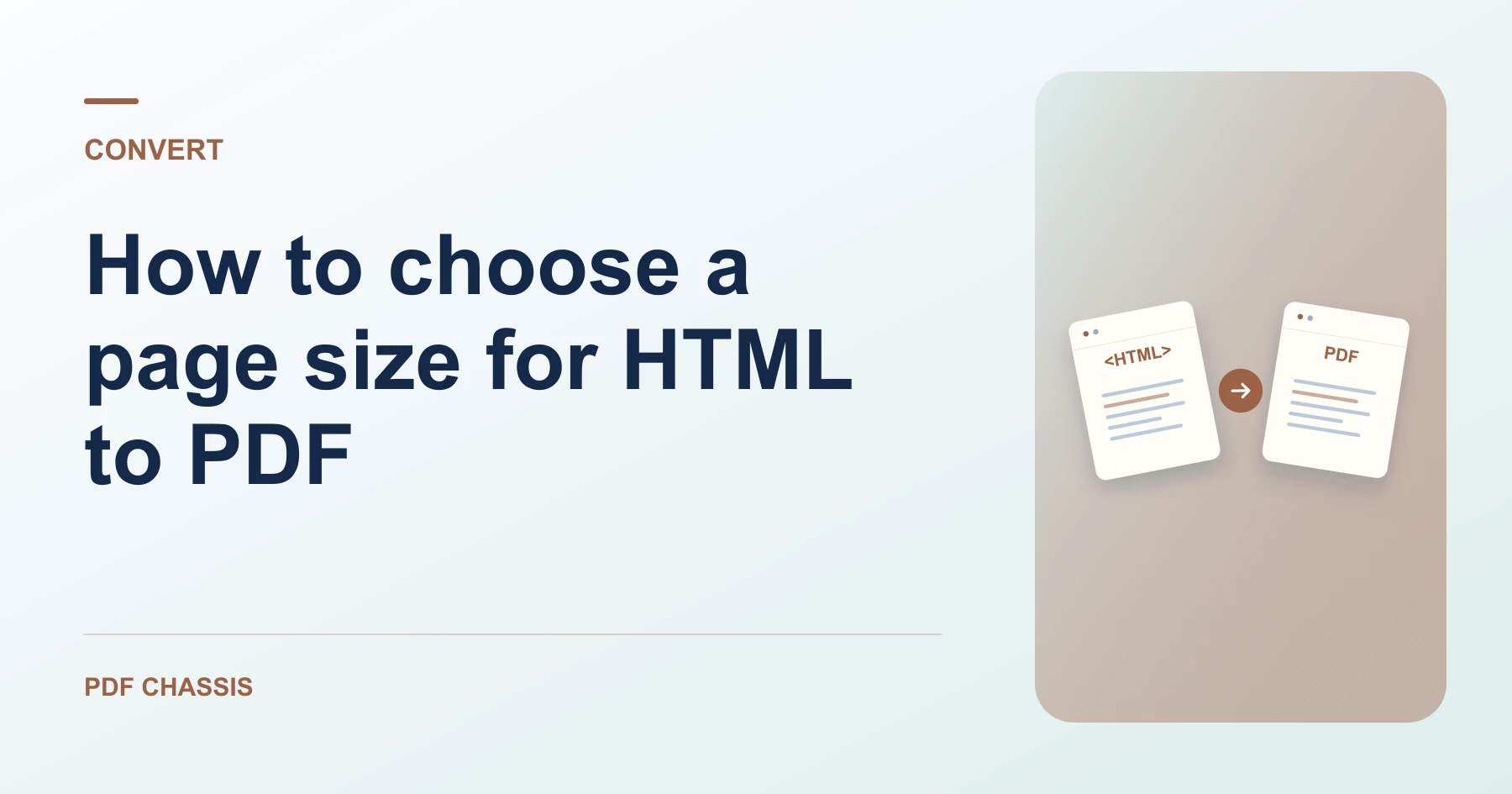
Learn how to choose a page size for HTML to PDF. Open HTML to PDF when you’re ready.
When you choose a page size for HTML to PDF, use the example below to check what the tool returns. Keep the source available so you can check the exported result.
Steps to choose a page size for HTML to PDF
- Select A4 or Letter and choose portrait or landscape before exporting.
- Try landscape when a long line wraps awkwardly in portrait.
What to check
When you choose a page size for HTML to PDF, open the PDF and check that the selected page orientation and line breaks look right.
For a related workflow, see How to convert an HTML snippet to PDF.

Frequently asked questions
What should I check before I share the result?
Open the PDF and check that the selected page orientation and line breaks look right.
What if the result looks wrong?
Complex web styling and interactive elements may not carry over. Use the browser’s print dialog if you need to print the rendered web page.
What will this workflow produce?
HTML text → A4 or Letter PDF. Check text and page breaks. Compare any important layout or media with the original.
Ready to try it?
Open HTML to PDFHTML to PDF