How to add a draft watermark to a PDF
Label a working copy clearly before sending it for review. Here’s how to add a draft watermark to a PDF and check the result.
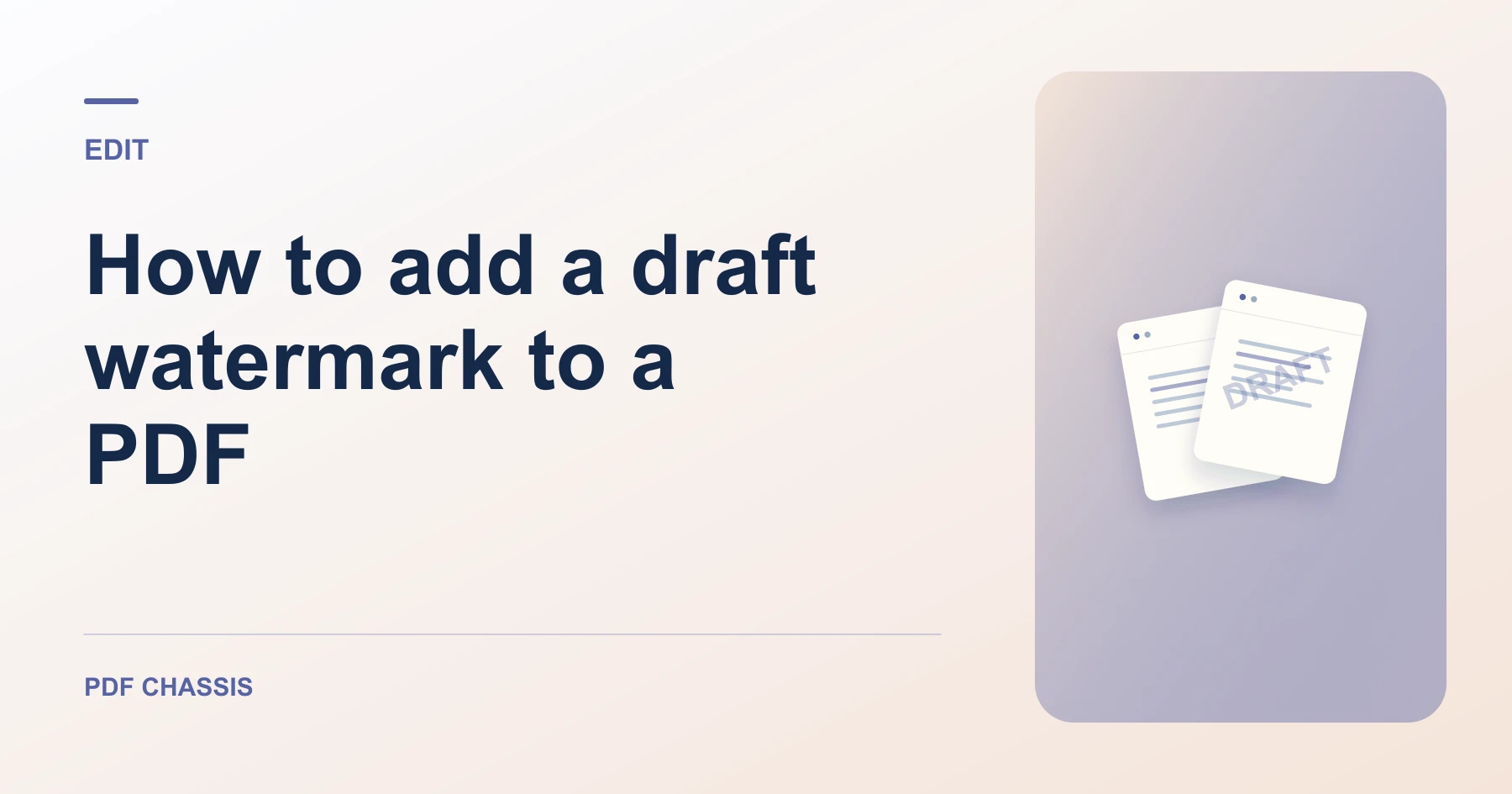
Learn how to add a draft watermark to a PDF. Open Watermark PDF when you’re ready.
When you add a draft watermark to a PDF, use the example below to check what the tool returns. Keep the source available so you can check the exported result.
Steps to add a draft watermark to a PDF
- Enter DRAFT as Watermark text, select a moderate opacity, and run Watermark PDF.
- Leave Page numbers blank for the full document.
What to check
When you add a draft watermark to a PDF, make sure the mark is visible without obscuring charts or small text.
For a related workflow, see How to watermark selected PDF pages.

Frequently asked questions
What should I check before I share the result?
Make sure the mark is visible without obscuring charts or small text.
What if the result looks wrong?
If the mark disappears against a dark image or hides small type, adjust its opacity and try again.
What will this workflow produce?
Report.pdf → DRAFT watermarked copy. Check the mark on a light and a dark page. Make sure it remains readable and leaves the document text legible.
Ready to try it?
Open Watermark PDFWatermark PDF